Account security
In short: You sign in to FleetOS with your email address and password, and can reset the password yourself from the login screen. FleetOS keeps an audit trail of key account and access events, and each charger's page shows its full action history. Organization API keys let integrations act on your behalf, with the key shown only once.
Logging in
-
Sign in with your email address and password.
-
If you forget your password, use the Reset password link on the login screen — no need to contact an admin or support.
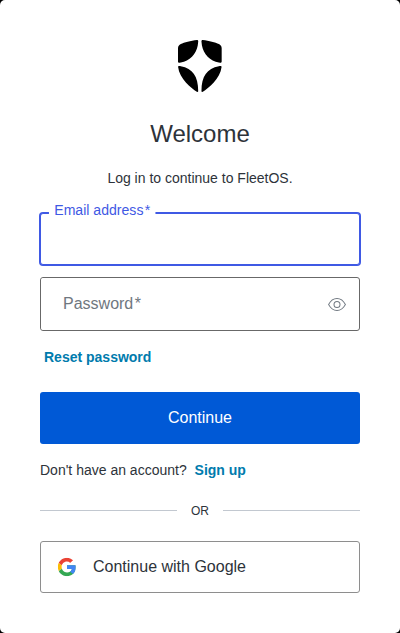
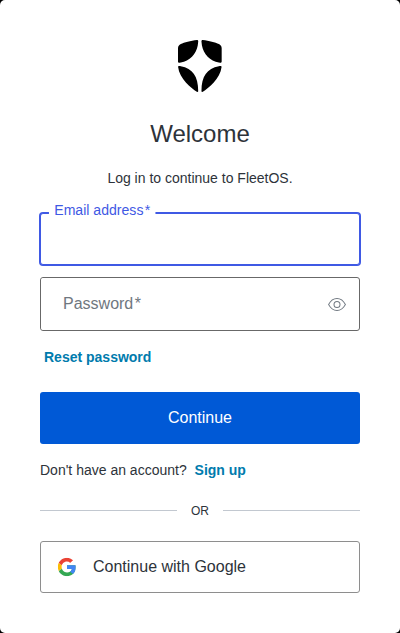
Some organizations have additional sign-in security (such as multi-factor authentication or enterprise single sign-on) depending on their setup. If your organization uses SSO, your admin or your FleetOS contact can tell you how sign-in works for you.
What FleetOS records
FleetOS keeps an audit trail of the key events affecting your organization's accounts and access — each entry records what happened, when, and who did it. Recorded events include:
- Organization details being created or updated
- Members being invited, joining, having their role changed, being suspended, reactivated, or removed
- Access being granted or revoked (for example, access to a specific charger)
- API keys being created or revoked
- Your own privacy choices (analytics and marketing consent) being changed
Reviewing a charger's audit log
In the app, every charger carries its own complete history — commissioning steps, recovery actions, configuration changes, and every command issued to it:
-
Open the charger's page and go to the Health tab, then Audit log.
-
Filter by action or time, and review who did what: each row shows the timestamp, the actor, the action, and its result.
-
Select Export to download the log, for example for a vendor or an internal review.
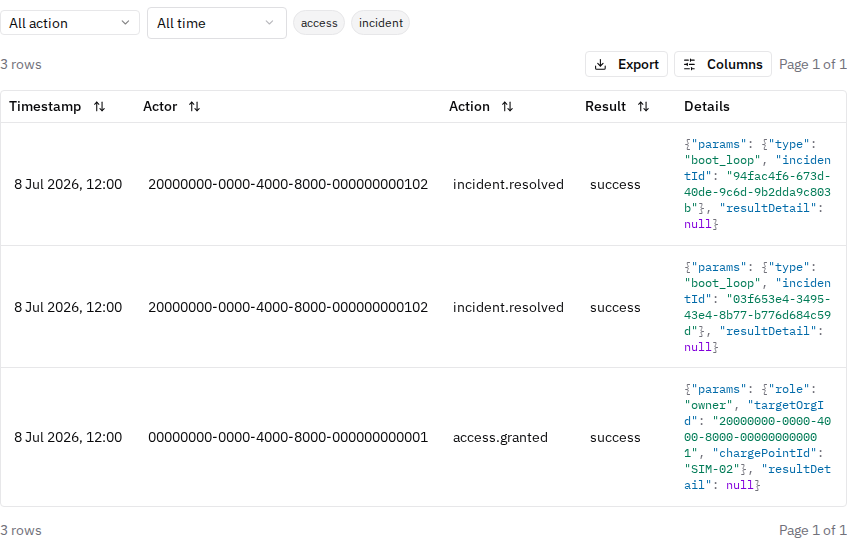
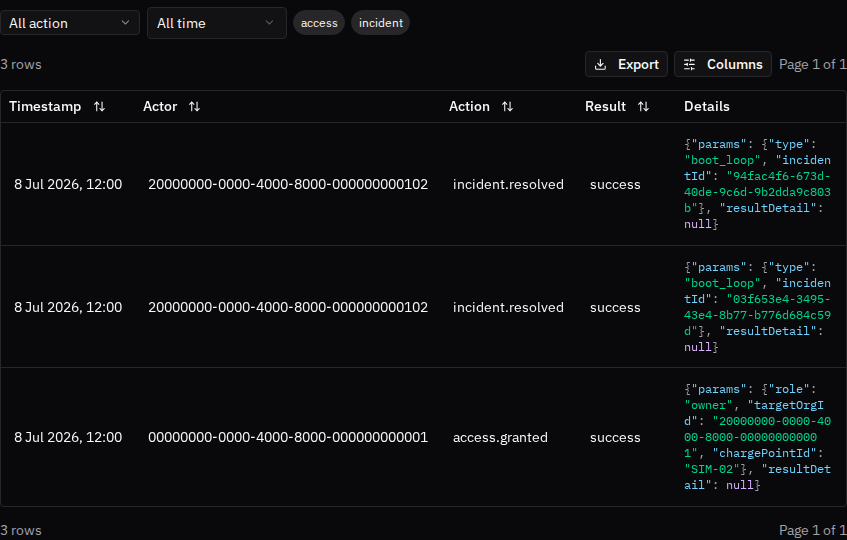
Account-level events (memberships, API keys, organization changes) are recorded in the same audit trail; if you need a review of those, contact your FleetOS support contact.
Organization API keys (admins)
Integrations — like an HR system keeping drivers in sync — authenticate with organization API keys:
-
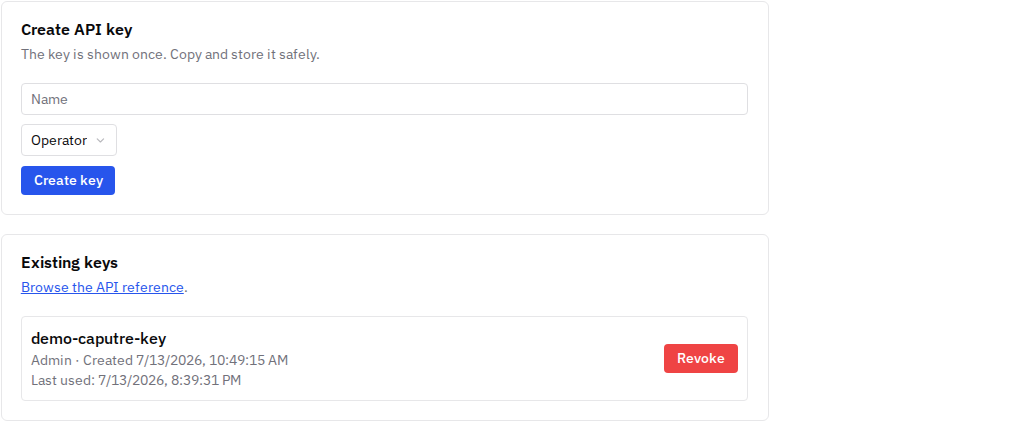
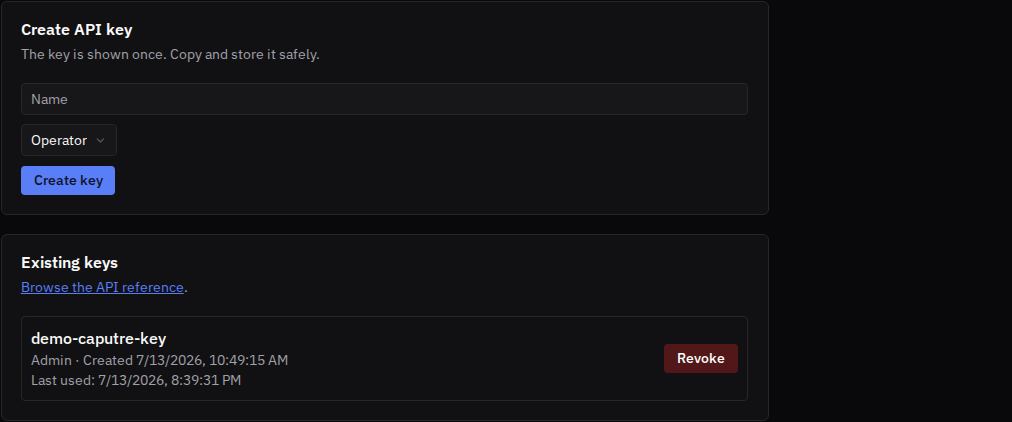
In the sidebar, go to Organization and open the API Keys tab.
-
Enter a name for the key and pick its role (the same Admin / Operator / Viewer roles as members — give a key only the access it needs).
-
Select Create key. The key is shown once — copy and store it safely. You can revoke a key at any time from the same tab.
If you suspect unauthorized access
- Reset your password immediately (from the login screen or your identity provider).
- Tell your organization admin: they can suspend the affected account from User Management (blocking access without deleting anything) and review what happened.
- If an API key may be compromised, an admin should revoke it from the API Keys tab and create a new one.
Good to know
- Self-service password reset means you never need to contact anyone just to get back into your account.
- Your name and email are managed by your sign-in account; what you control in FleetOS (phone, language, privacy choices) lives on your profile — see the team members page.
- API keys are org-scoped and role-limited; the secret is stored hashed and can't be shown again after creation — losing it means creating a new key.
- Suspending an account keeps everything intact for later reactivation — it's the safe first response while you investigate.
- The API Keys tab links straight to the API reference, handy when you're handing a key to an integrator.
Common issues
- Symptom: I forgot my password. Fix: use Reset password on the login screen — you'll get an email to set a new one.
- Symptom: I think my account has been compromised. Fix: reset your password immediately and tell your organization admin, who can suspend the account from User Management while investigating.
- Symptom: an integration stopped working after a key was lost. Cause: API keys are shown only once and can't be recovered. Fix: revoke the lost key and create a new one on the API Keys tab.
Related pages
Last updated: 2026-07-14 · Verified on: hosted demo app (explorer-2, org "Sandbox Two"), 2026-07-14