Charging speed and load management
In short: Charging slower than expected is almost always normal behavior, not a fault — it depends on how the site shares power across chargers (load management) or on the vehicle itself slowing down as its battery fills up (taper). FleetOS is designed to distinguish these cases and only flags the slowdown to the fleet team when it looks anomalous.
Understanding site power sharing (load management)
- Load management is an opt-in module: when your organization enables it, FleetOS actively shares a site's available power — based on its configured limits — across all chargers and vehicles charging at the same time.
- Each site uses one of two sharing strategies: Fair share (equal), where every active session gets an equal slice of the available power, or First come, first served, where earlier sessions keep priority. Either way this is intentional and keeps the site within its real capacity — not a malfunction.
Configuring a site's power model
-
Open the site and go to Infrastructure → Power model: a tree from the grid connection down to each charger, showing live load against every configured limit. Chargers stay in the model even while offline, so it keeps reflecting the site's full electrical layout when a charger is temporarily disconnected.
-
Select Edit to add nodes (grid connection, transformer, and so on down to each charger), set a maximum power for each, and pick the site's Power sharing strategy.
-
The Balancing switch controls enforcement: off, the model is a preview only and chargers run unrestricted; on, FleetOS actively caps each charger to stay within every node's limit.
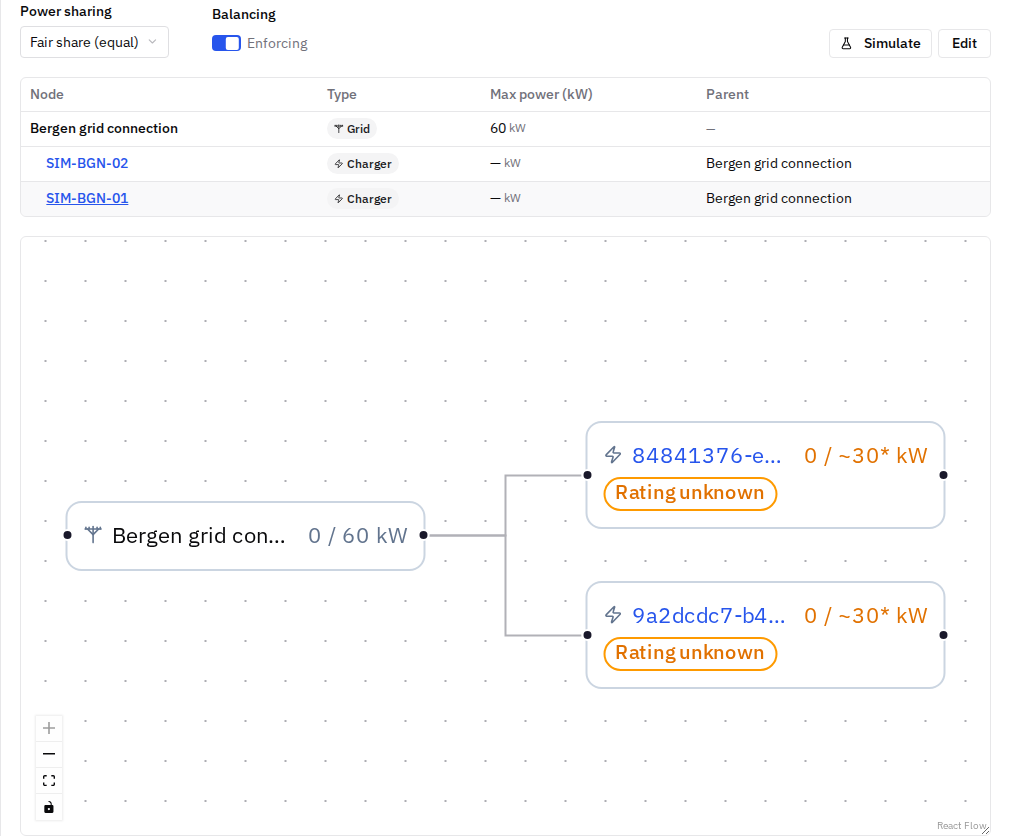
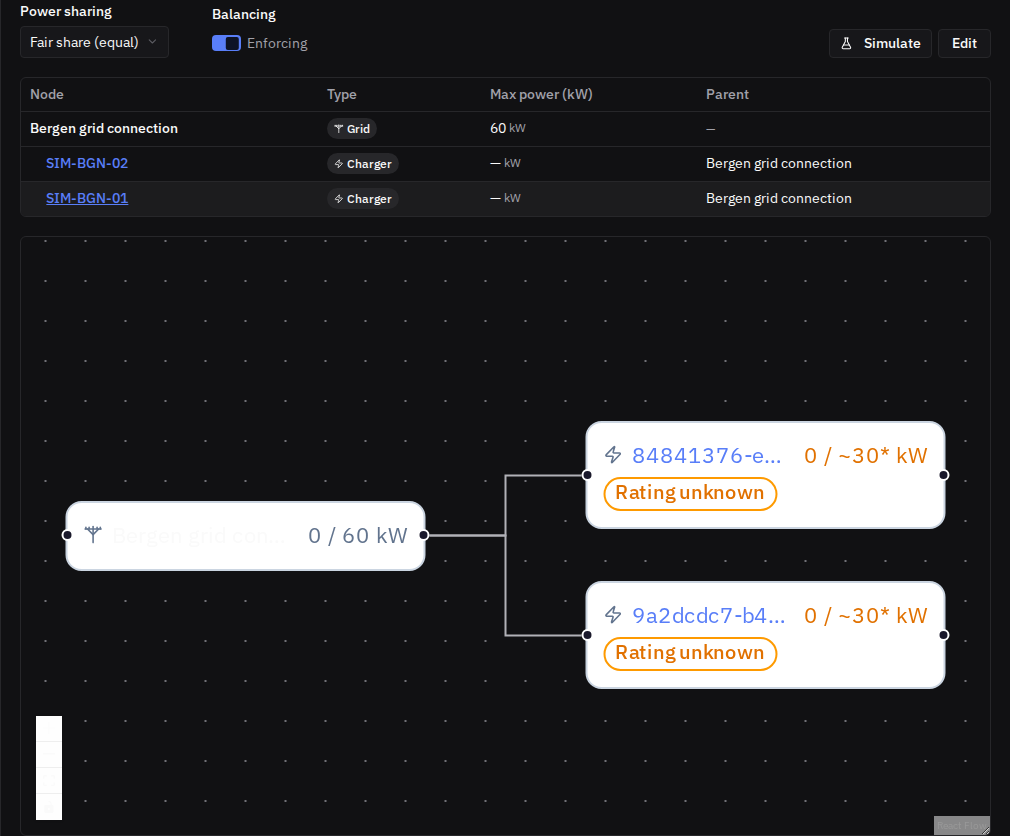
A charger's own page shows a compact Load management summary (its current cap and whether balancing is enforcing or only previewing), with a link back to the site's power model.
Recognizing vehicle-side taper
- As an EV's battery approaches full charge, the vehicle itself — not FleetOS or the charger — reduces the power it accepts.
- This is a normal, protective behavior built into virtually every EV's own battery management system, and it's expected during the final part of a charging session.
When a session waits for capacity
- If a site is very busy, FleetOS makes sure every charging vehicle keeps at least a minimum usable power. When even that isn't possible, the most recently started sessions are briefly paused at zero power instead of starving all sessions at once.
- A paused session shows as "waiting for capacity" and resumes automatically as soon as power frees up — longest-waiting sessions first. This is deliberate, not a fault.
Checking a session's power curve
If you want to see for yourself how a session's power evolved:
-
Open the charger's page: the Sessions tab lists every session with a small power-curve preview in the Curve column.
-
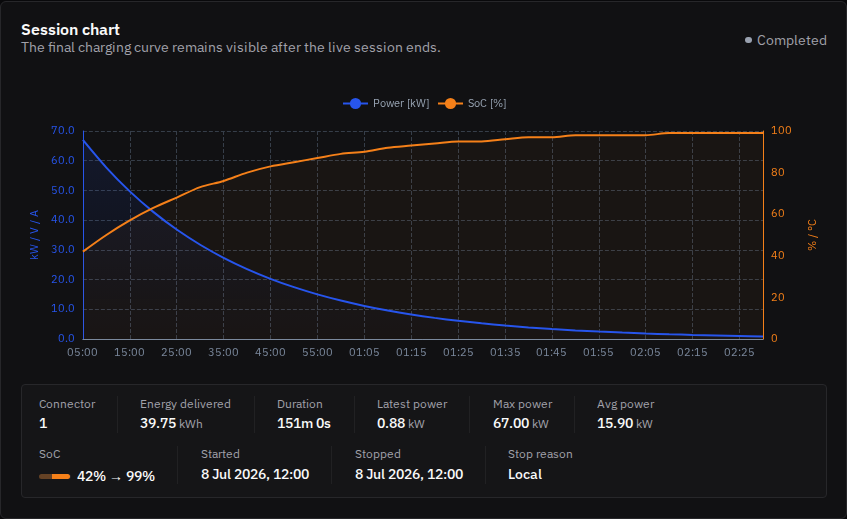
Select a session row: the Session chart expands with the full charging curve and the session's key numbers (energy delivered, duration, average and peak power, start/stop times, stop reason). The final curve stays visible after the session ends.
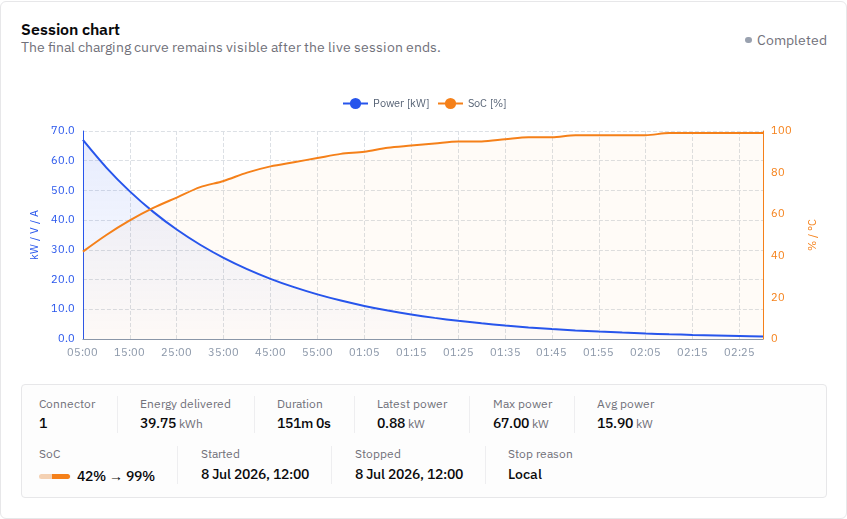
A curve that steps down when other vehicles start charging points to load management; a curve that ramps down smoothly near the end of the charge is the vehicle's own taper.
Good to know
- Load management and vehicle-side taper are both intended, controlled behavior — FleetOS is designed to recognize and exclude them when checking for real problems, rather than mistaking them for a fault.
- A session held at zero power while "waiting for capacity" is expected on busy sites with load management, and resumes automatically — it isn't stuck.
- An offline charger shows zero load in the power model: it draws nothing while disconnected, but stays visible so the site's planned capacity and wiring remain accurate.
- FleetOS continuously compares each session's actual power delivery against what was allocated to it. If a session sustains power well below that — and it isn't explained by load management or taper — FleetOS is designed to flag it as a separate underperforming charge incident, distinct from normal power sharing or taper.
Common issues
- Symptom: a vehicle is charging more slowly than expected. Likely cause: load management active on the site (several vehicles charging at once), or natural vehicle-side taper near the end of the charge. Fix: check with the fleet manager/admin whether load management is active on that site — it explains most cases; the session's power curve shows the pattern.
- Symptom: the session stays at zero power for a while at the start. Cause: a very busy site — the session is waiting for capacity to free up. Fix: no action needed — it resumes automatically as soon as power is available.
- Symptom: the slowdown isn't explained by load management, nor does it happen near the end of the charge (where taper is expected). Cause: possibly a real underperforming-charge incident. Fix: check the fleet's incident log for an Underperforming Charge entry, or contact FleetOS support with the charger and the approximate time of the session.
Related pages
- Adding a charger (setting the connector's kW power rating)
- Charger offline or faulted
- Incidents and escalation
- Managing sites
Last updated: 2026-07-28 · Verified on: hosted demo app, 2026-07-28