Incidents and escalation
In short: FleetOS automatically detects charger problems, tries to recover them on its own, and tracks everything in one fleet-wide incident log — what needs you floats to the top. You can set an organization-wide escalation contact who is alerted whenever an incident needs outside help, and choose which channels notify your operators for each incident type.
What counts as an incident
FleetOS watches your chargers and automatically tracks these types of problems:
- Offline (Critical) — a charger has lost connection to FleetOS.
- Faulted (Critical) — the charger is reporting a hardware or electrical fault (including specific cases like a ground fault, an overheating condition, or a stuck connector lock).
- Session interrupted (Warning) — a charging session stopped unexpectedly.
- Stuck session (Warning) — a charging session isn't progressing or ending as it should.
- Underperforming charge (Info) — a vehicle is charging more slowly than it should be, compared to what was allocated to it.
- Boot loop (Critical) — the charger keeps restarting instead of coming back online normally.
- Metering stall (Warning) — the charger stops reporting meter readings (missing, frozen, or zero values) during an active session.
FleetOS attempts an automatic recovery step (such as a soft reset) for every type except boot loop, which skips straight to escalation. If automatic recovery doesn't fix the problem, the incident is escalated. Your organization's Incidents settings tab (see below) lists every type with its severity and recovery behavior.
Viewing the incident log
-
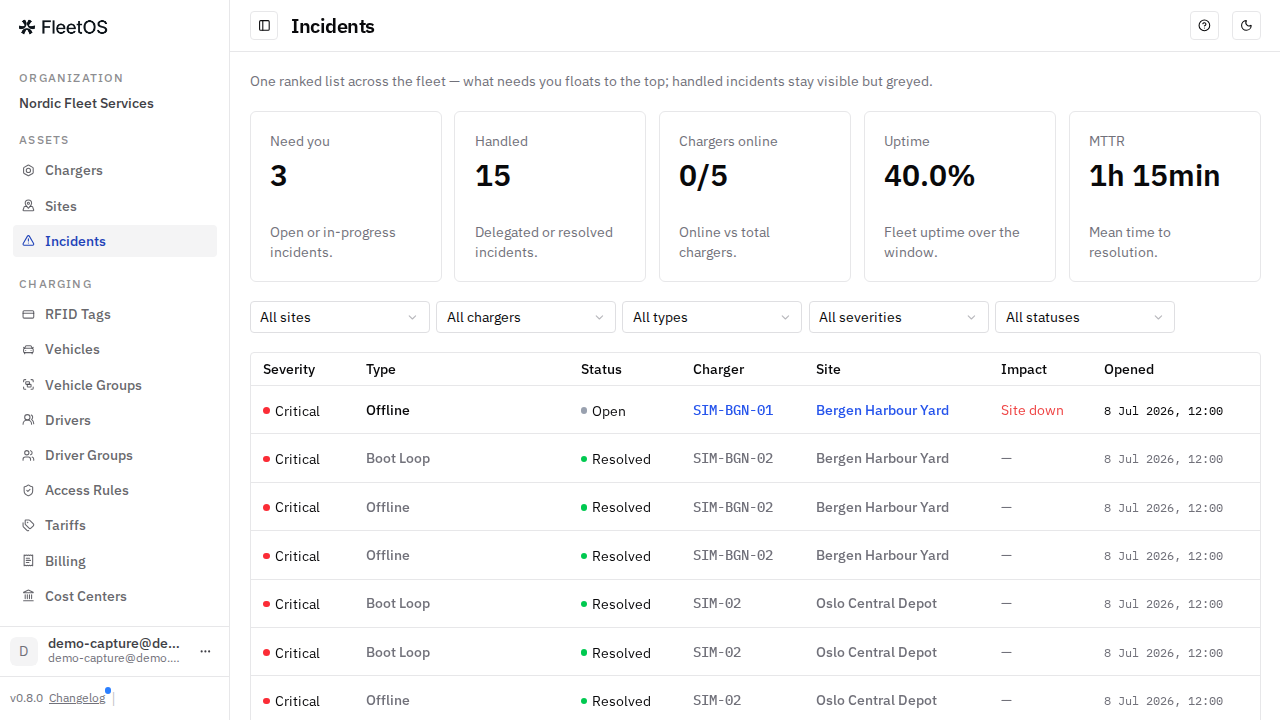
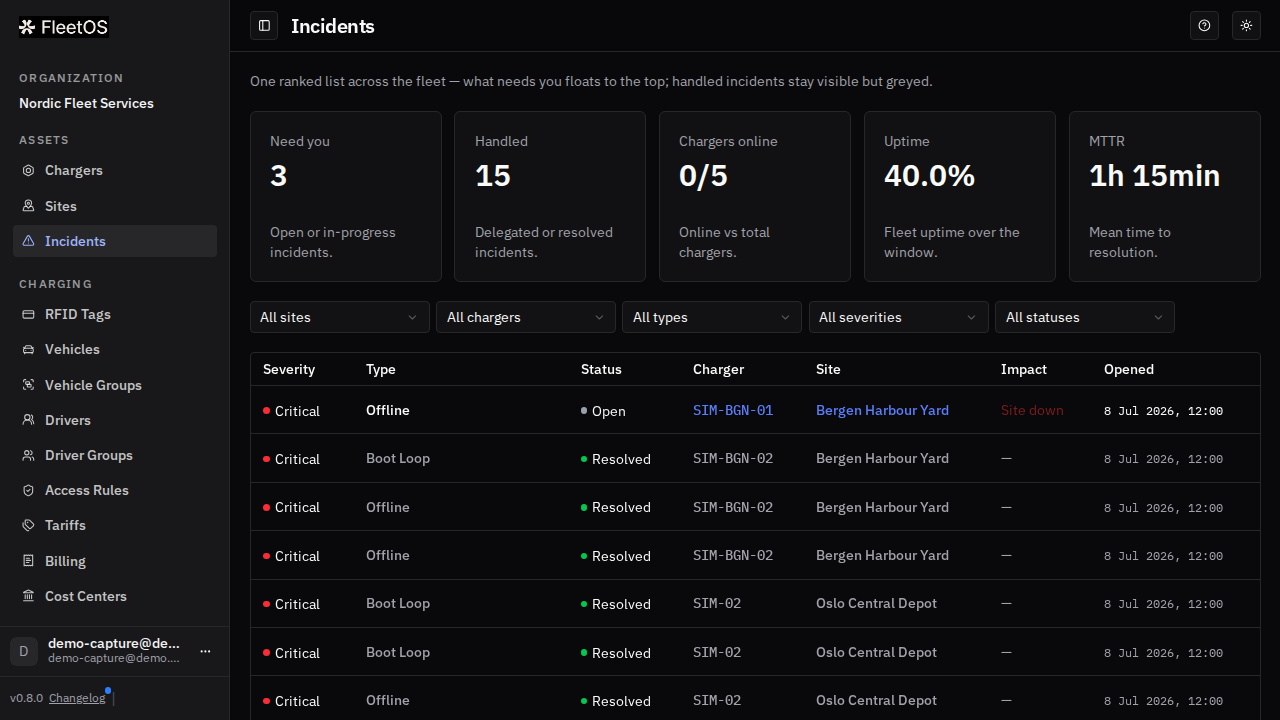
In the sidebar, go to Incidents. You get one ranked list across the whole fleet: incidents that need you float to the top, while handled ones stay visible but greyed. The cards at the top summarize what needs attention, chargers online, fleet uptime, and the mean time to resolution.
-
Filter by site, charger, type, severity, and status to narrow the list.
-
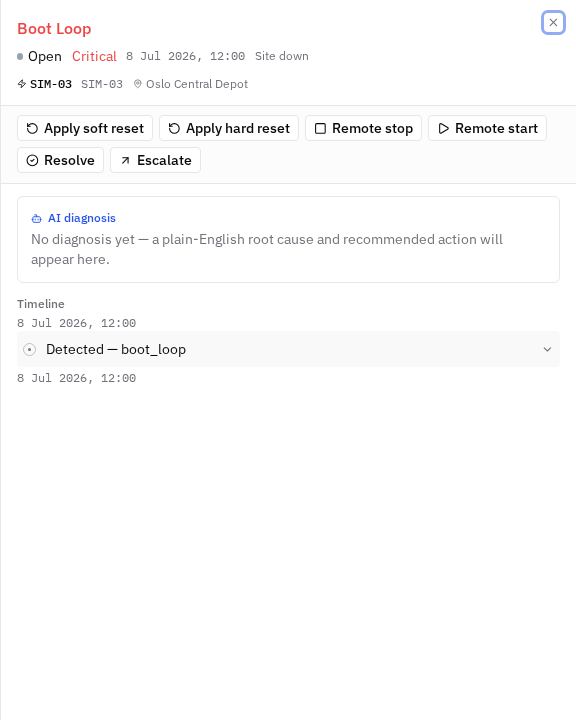
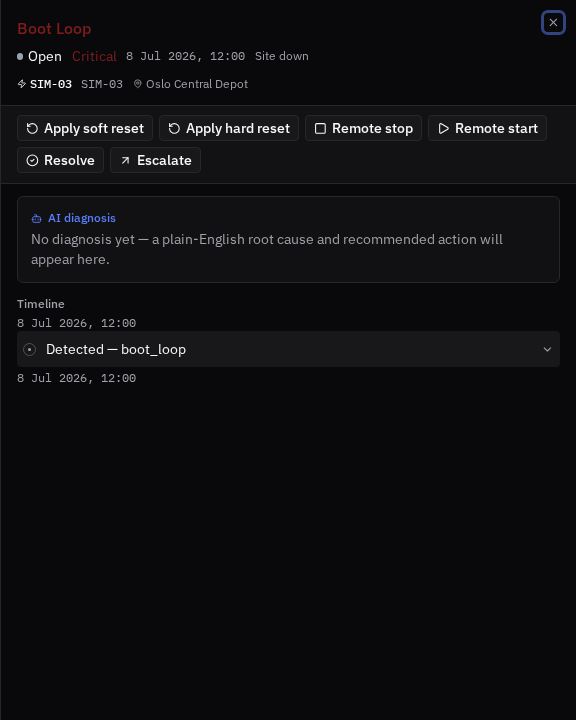
Select an incident to open its detail: the plain-English cause, the recommended next step, and the full event timeline, plus the action buttons for open incidents.
Each incident has a single, clear status:
-
Open — a new incident that hasn't been addressed yet.
-
In progress — FleetOS or your team is actively working on it (including automatic recovery attempts).
-
Delegated — the incident has been escalated onward, for example as a service ticket sent to the charger vendor.
-
Resolved — the problem has been fixed.
Setting up your escalation contact
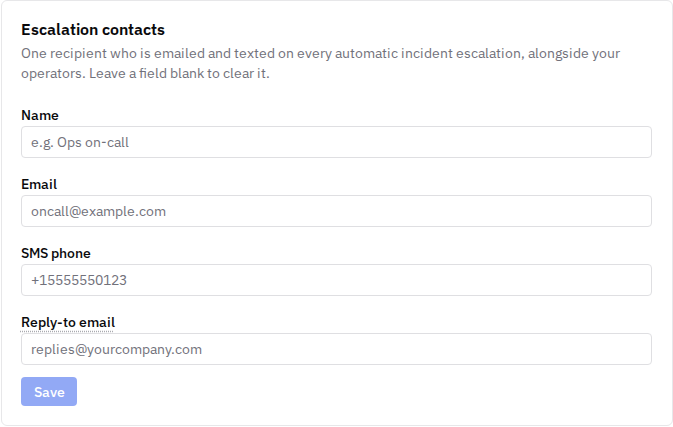
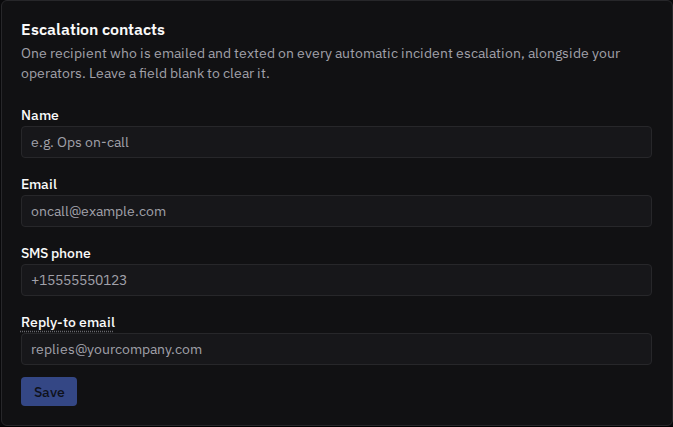
Your organization can set one escalation contact — a name, email address, and SMS phone number — that automatically receives an alert whenever an incident needs to be escalated (for example, when automatic recovery didn't work). This contact is notified by both email and SMS, in addition to your own team's operators.
-
In the sidebar, go to Organization and open the Incidents tab.
-
Under Escalation contact, enter the contact's name, email address, SMS-capable phone number, and — optionally — a reply-to email address for replies to escalation emails.
-
Select Save. From then on, this contact is alerted automatically on every escalation — there's no need to trigger anything manually. To remove the contact, clear the fields and save again.
Choosing notification channels per incident type
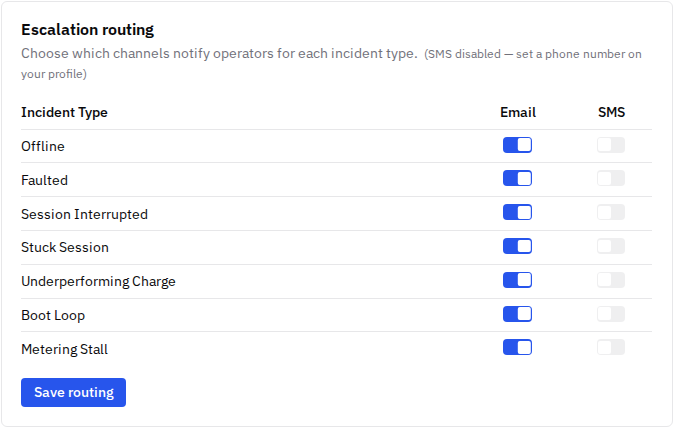
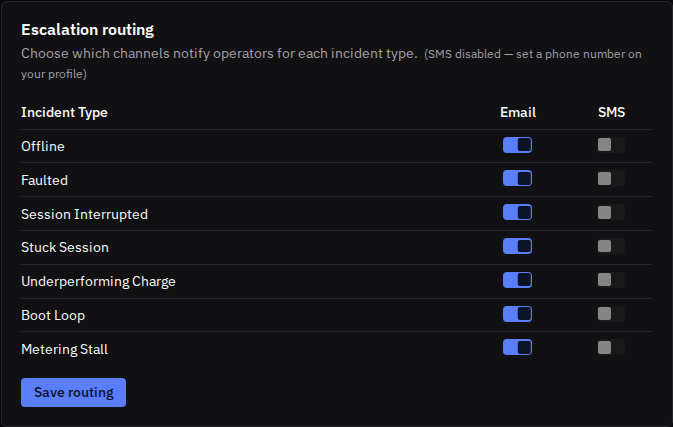
You can decide, for each incident type, whether your operators are notified by email, by SMS, both, or neither.
-
On the same Organization → Incidents tab, find Escalation routing.
-
Toggle the Email and SMS switches per incident type.
-
Select Save routing.
Good to know
- Only one escalation contact can currently be set per organization — not per site or per incident type. (Escalation routing controls the channels per type, not the recipient.)
- If an incident is escalated onward to the charger vendor for service, FleetOS sends the vendor a detailed message with the relevant charger context and diagnosis, and marks the incident as Delegated. Your team can also trigger this manually with the incident's Escalate button.
- Automatic recovery is always attempted first (when possible); escalation only happens if that doesn't fix the problem. You can turn automatic recovery on or off at three levels — a single charger (its Health tab), a whole site, or the whole organization — all from Organization → Incidents.
Common issues
- Symptom: I'd like different escalation contacts per site or per incident type. Cause: FleetOS currently supports only one contact per organization. Fix: use the single contact and route internally within your team after notification; per-type channel routing (email/SMS) is available under Escalation routing.
- Symptom: operators get too many SMS alerts for minor issues. Cause: SMS is enabled for low-severity incident types. Fix: in Organization → Incidents → Escalation routing, leave SMS on only for the types that warrant it (e.g. Faulted, Offline) and keep email for the rest.
- Symptom: the SMS switch in Escalation routing is greyed out and won't turn on. Cause: SMS routing requires a phone number on your own user profile. Fix: add a phone number to your profile — the SMS switches become available once one is set.
Related pages
Last updated: 2026-07-14 · Verified on: hosted demo app, 2026-07-14