Team members and roles
In short: Organization admins invite new users by email from User Management, assign them one of three roles, and can suspend or remove accounts when someone leaves. Every user manages their own phone number, interface language, and privacy choices from their profile.
Prerequisites
Inviting, editing, suspending, or removing members requires the Admin role in your organization.
Inviting a new team member
-
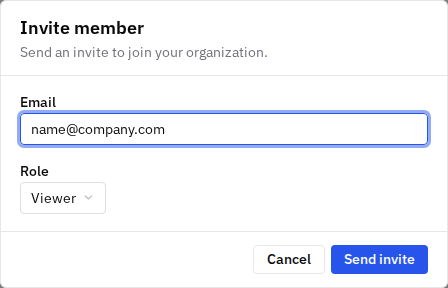
In the sidebar, go to User Management and select Invite member.
-
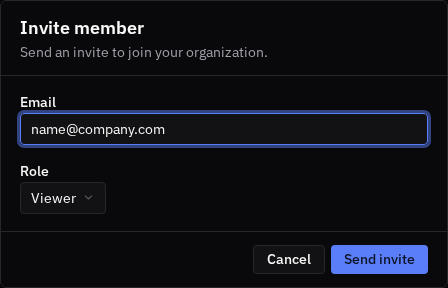
Enter the new member's email address and choose a role (the default is Viewer).
-
Select Send invite. The person receives an email invitation.
-
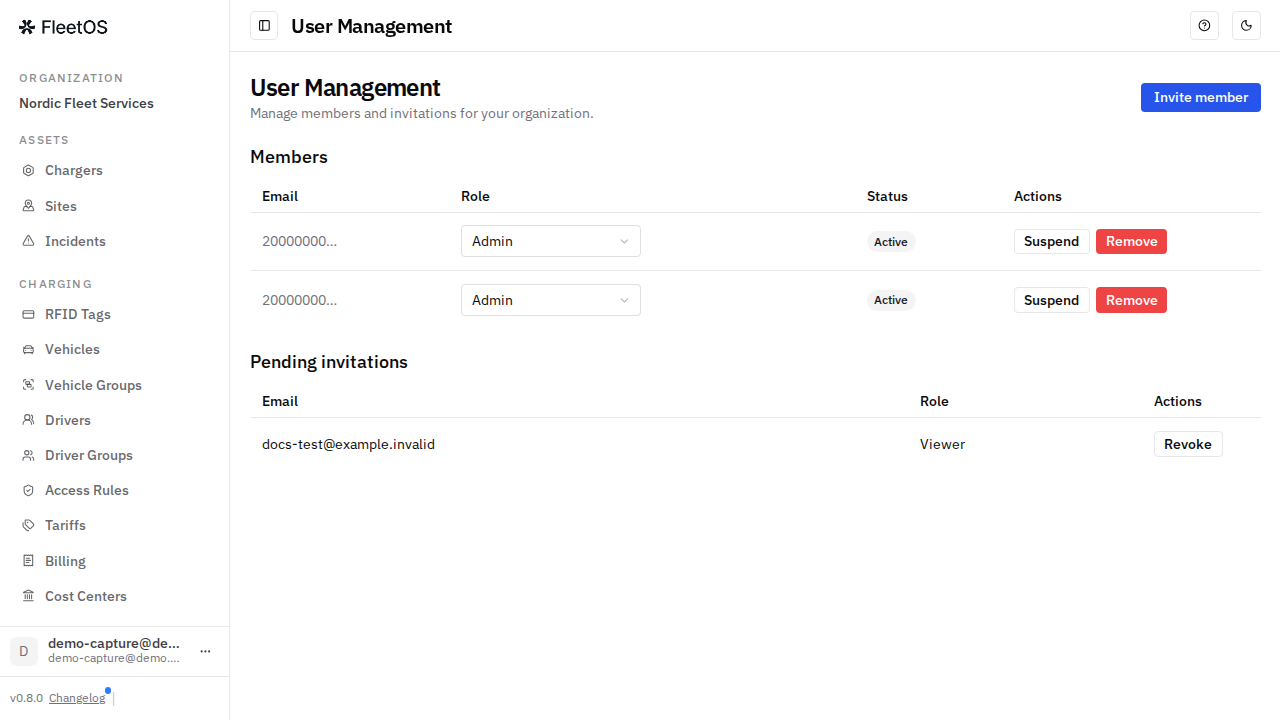
Until it's accepted, the invitation appears under Pending invitations on the same page, where you can revoke it. Invitations expire after a while if not accepted — if that happens, simply send a new one.
Choosing a role
Every person you invite gets one of three roles:
- Admin — full access: can manage chargers, sites, and fleet data, and can invite, edit, suspend, or remove other members.
- Operator — works with day-to-day fleet operations (chargers, sessions, incidents) but does not manage organization membership.
- Viewer — read-only access, for people who need visibility without the ability to make changes.
There are also separate charger-level access roles, used when a single charger is shared with an external organization (for example a service partner) — those are distinct from your organization roles.
Managing existing members
-
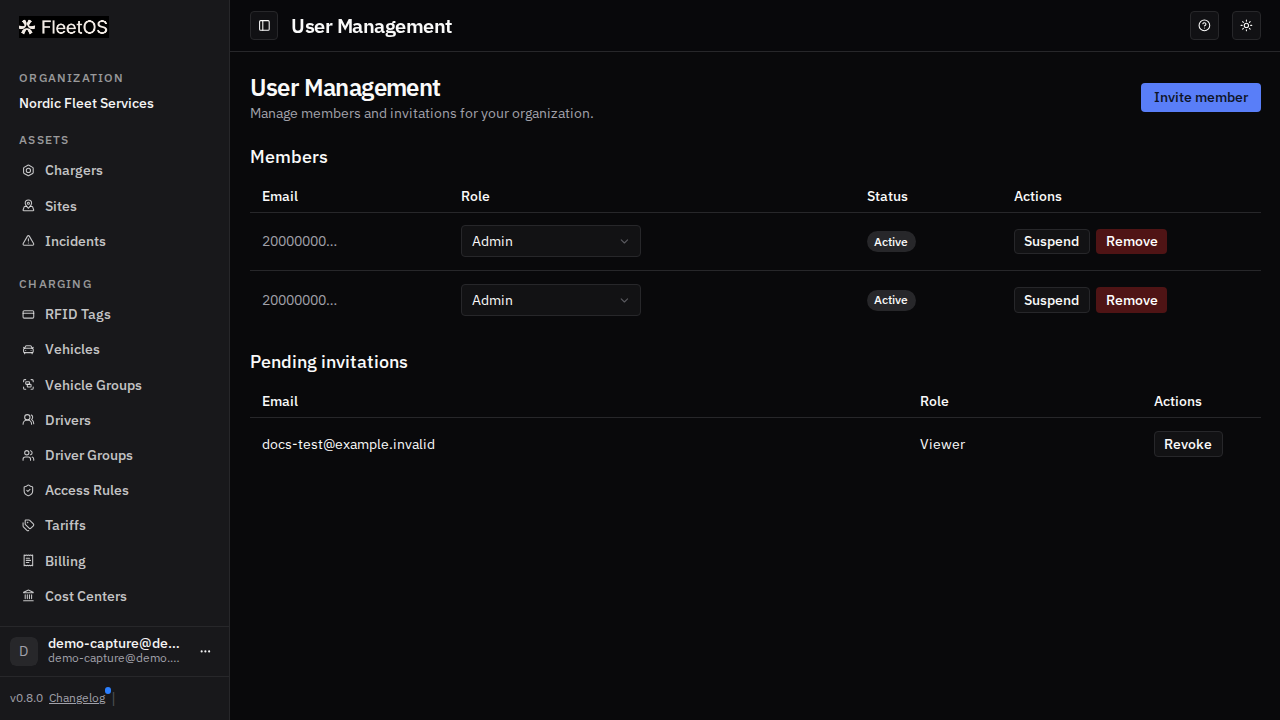
Open User Management to see everyone in your organization, with their role and status.
-
Change a member's role directly from the role selector in the list.
-
Suspend a member to temporarily block their access without deleting anything — their account and permissions are kept, and you can reactivate them later. Remove them to take them out of the organization; this also revokes any charger-level access they had.
Belonging to more than one organization
If you work with multiple fleets that use FleetOS, your account can be a member of more than one organization at the same time (each with its own role), and you can switch between them from within the app. If you only belong to one organization, no switcher is shown.
Managing your own profile
-
Select your user at the bottom of the sidebar and choose Profile.
-
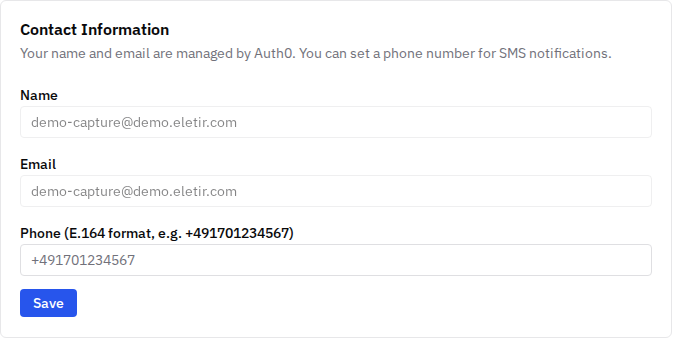
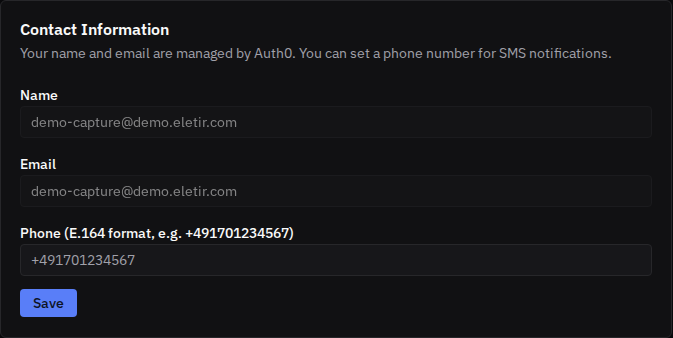
Your name and email are managed by your sign-in account and can't be edited here. You can set a phone number (used for SMS notifications) —
-
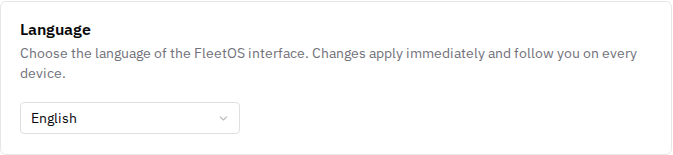
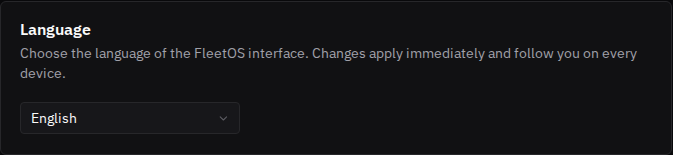
— and pick the interface language (English, Deutsch, Italiano). The change applies immediately and follows you on every device.
-
Under Privacy, two optional switches control anonymous product analytics and marketing emails.
Good to know
- To protect your organization, FleetOS won't let you remove or demote the last remaining admin, and an admin cannot demote themselves if they're the only one left.
- Suspending keeps the member's account and permissions intact for a later reactivation; removing revokes their charger-level access too.
- Each organization member can see the email addresses of the other members of that organization.
- The profile page also shows the organization's incident escalation routing (which channels notify operators per incident type) — the same setting that lives under Organization → Incidents; see the incidents page.
- You need an SMS-capable phone number on your profile to receive SMS incident notifications.
Common issues
- Symptom: I can't remove or demote myself from admin. Cause: you're the last remaining admin. Fix: promote another member to Admin first, then change your own role.
- Symptom: a new member says their invitation doesn't work. Cause: invitations expire if not accepted for a while, or it was revoked. Fix: send a new invitation from User Management.
- Symptom: you need to change your display name or email. Cause: they're managed by your sign-in account, not by FleetOS. Fix: contact your FleetOS administrator or support.
Related pages
Last updated: 2026-07-14 · Verified on: hosted demo app (explorer-2, org "Sandbox Two"), 2026-07-14