Drivers and RFID cards
In short: You add drivers to FleetOS one at a time or in bulk via CSV import, and issue each driver one or more RFID cards to start charging sessions. Driver groups organize charging-access rules, so most fleets group drivers by role or shift. Pricing is set on the card itself, via its tariff.
Adding a driver manually
-
In the sidebar, go to Drivers and select Add driver.
-
Enter the driver's Name, Email, and Phone — all three are required — plus an optional External ID (your own employee/staff ID) and Contact email.
-
Select Create driver.
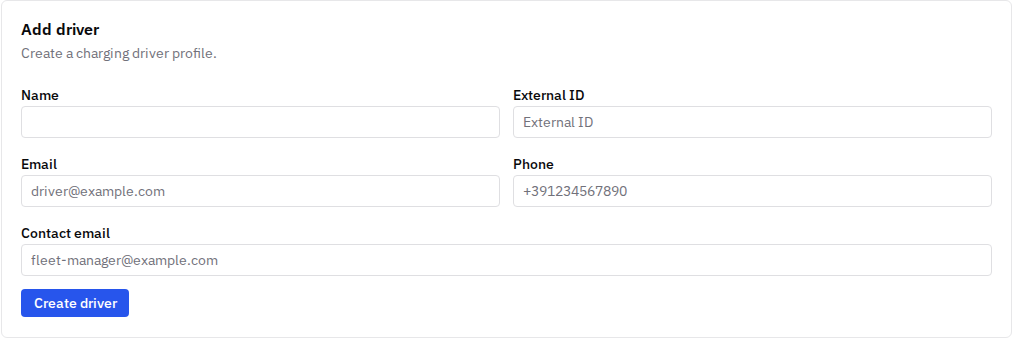
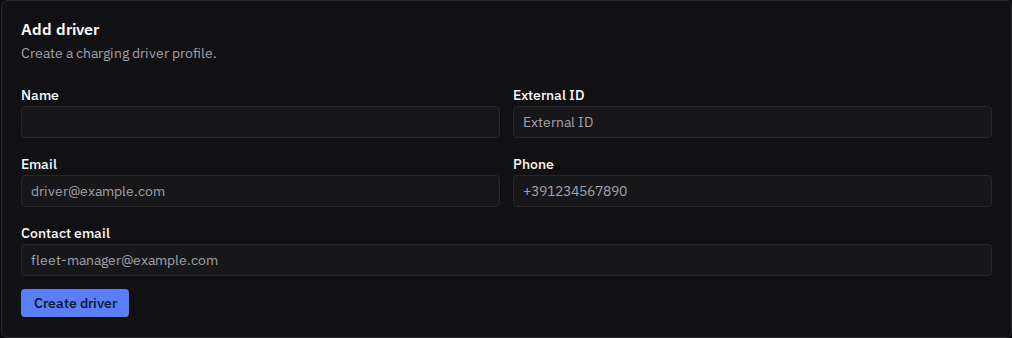
Groups and RFID cards are assigned in their own sections after the driver exists — see below. You can edit a driver's details at any time from their page, and Deactivate them there too: deactivating disables every RFID card assigned to the driver, while their group memberships are kept in case they're reactivated. Their history stays.
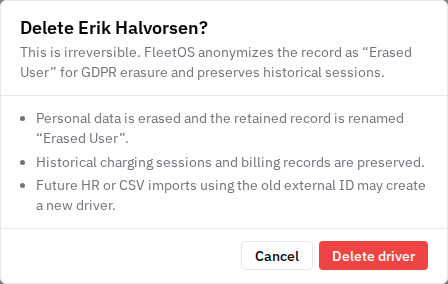
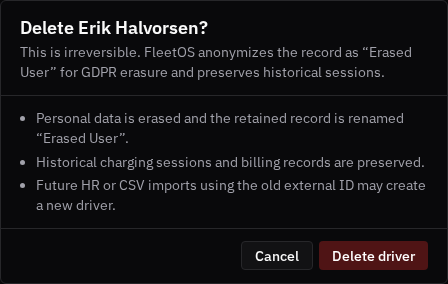
If you need to remove a driver's personal data entirely — for example to honor a data-erasure request — use Delete driver in the same page's danger zone instead. This is irreversible: it erases the driver's personal data and renames the record "Erased User", while keeping their historical charging sessions and billing records intact. A later HR sync or CSV import that reuses the old external ID will create a new driver record.
Adding the driver to groups
Driver groups are how you organize charging-access rules (for example: day shift, night shift, contractors).
-
In the sidebar, go to Driver Groups. Create a group if you need one.
-
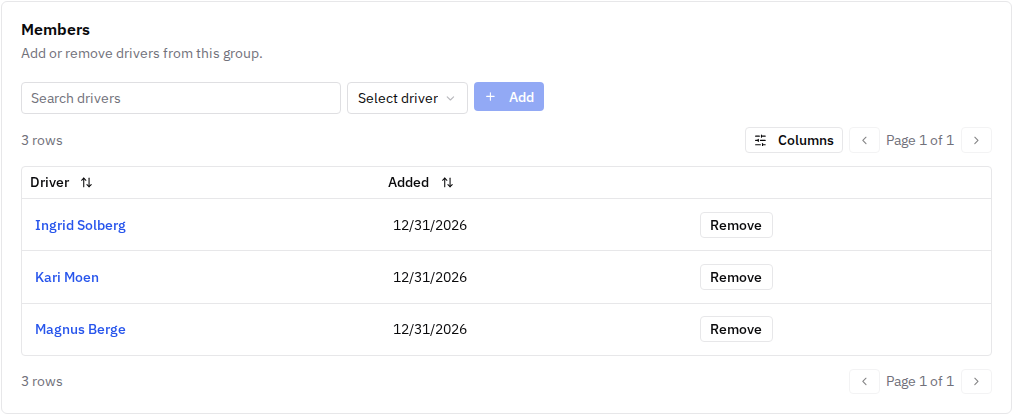
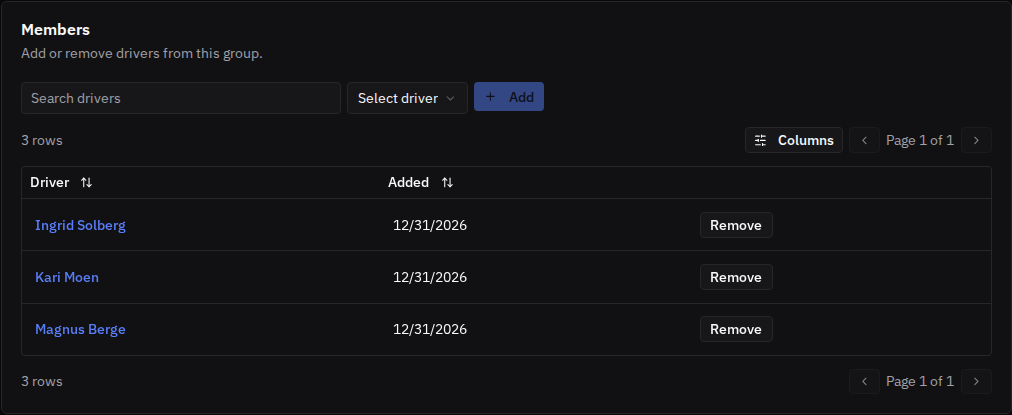
Open the group and, under Members, pick the driver and select Add. A driver can belong to several groups; remove them from a group with Remove.
Issuing an RFID card
-
In the sidebar, go to RFID Tags and select Add RFID tag.
-
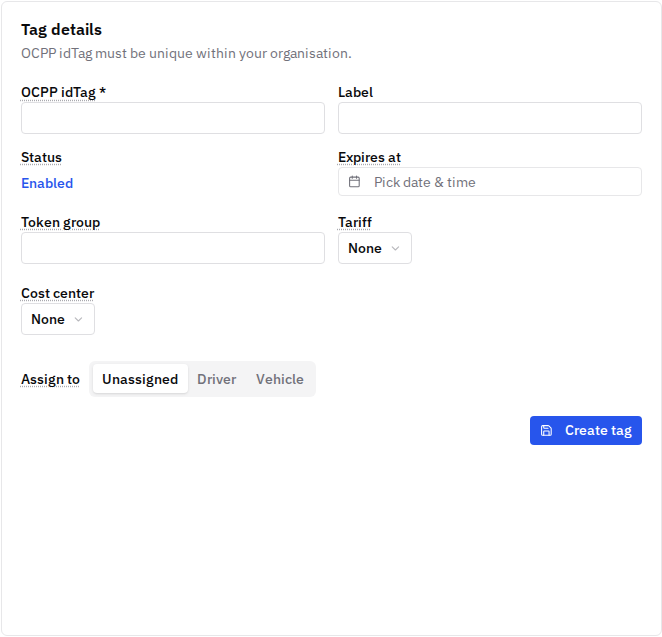
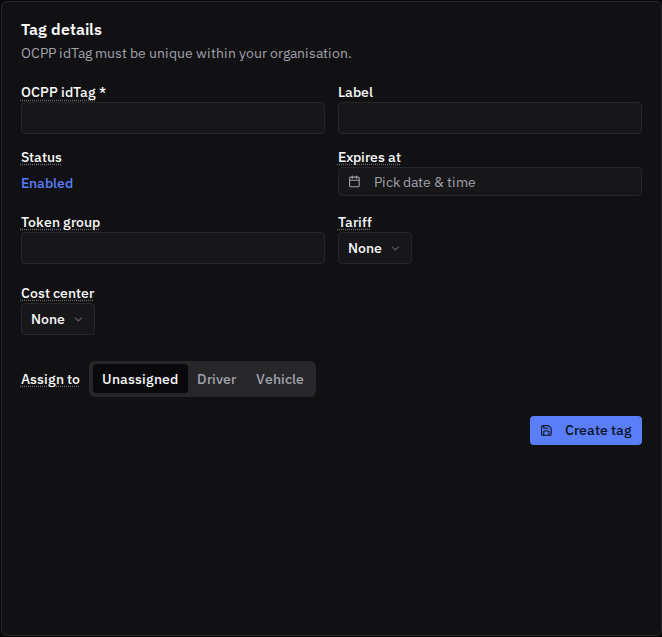
Enter the card's OCPP idTag — the identifier printed on or encoded in the card, in hex format. Colons and upper/lower case are normalized automatically.
-
Optionally add a Label, an Expires at date, a Tariff (how sessions on this card are priced), and a Cost center (who the cost is attributed to).
-
Under Assign to, choose Driver and pick the driver (a card can also be assigned to a Vehicle — useful for pool cars — or left unassigned).
-
Select Create tag. The driver can now tap the card at any charger their access rules allow.
Bulk-adding drivers with a CSV file
-
On the Drivers page, select Import CSV.
-
Download the template — it has the columns
external_id, email, name, group, rfid_token, cost_center, valid_from, valid_until. Email is required on every row; new drivers also need a name. -
Upload your prepared file.
-
Choose how rows are matched to existing drivers: by External ID (recommended — best for HR/fleet-system lists, survives email changes) or by Email (for one-off manual lists).
-
Review the server-validated preview and select Import valid rows.
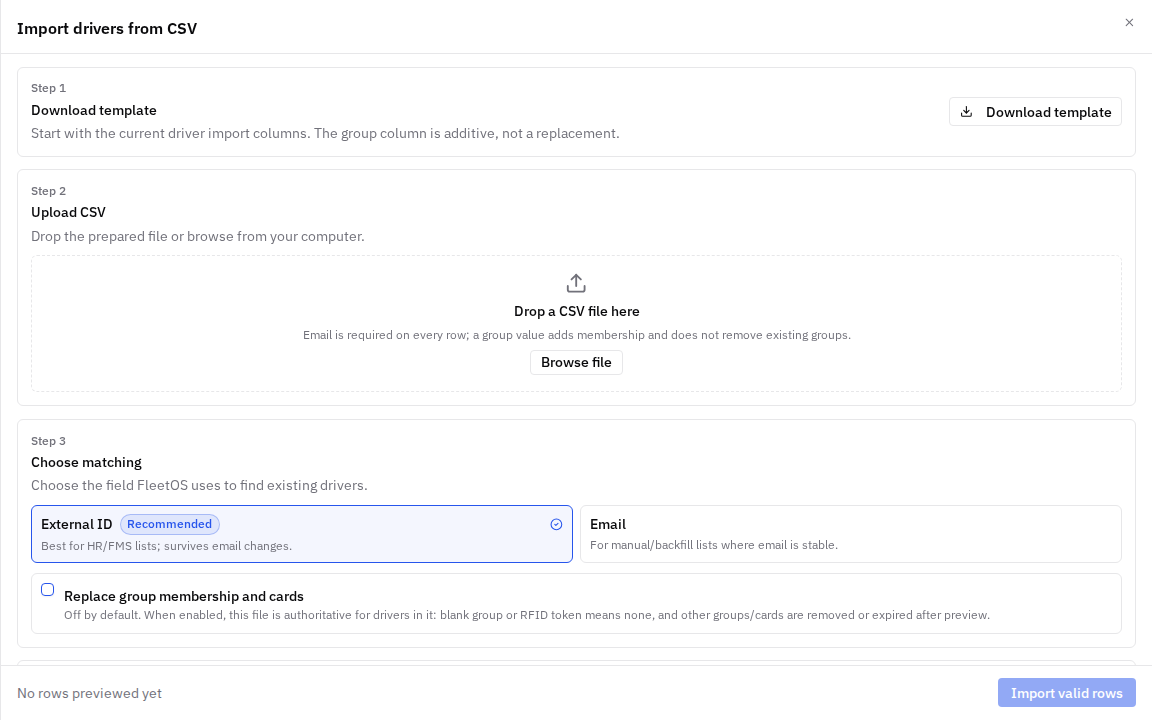
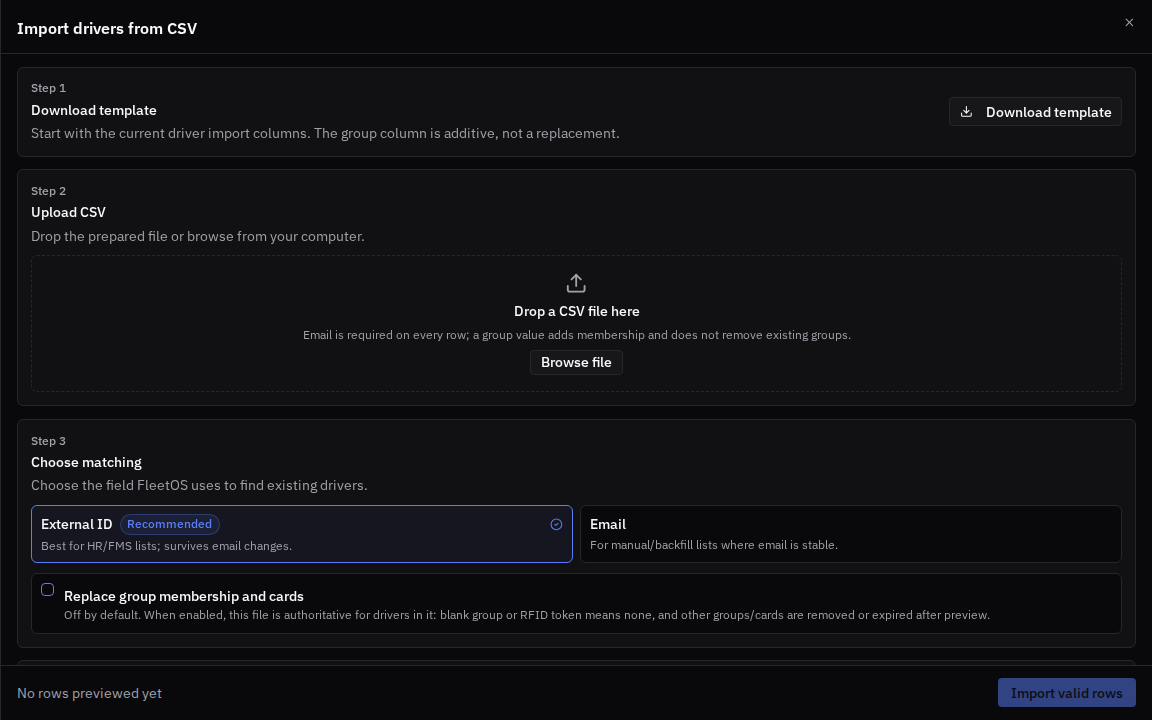
One import creates or updates, in a single pass: the driver record, their group membership, their RFID card, and their cost center — groups and cost centers named in the file are created automatically if they don't exist yet.
If your company uses an HR system, FleetOS also has a stable API for keeping drivers, group memberships, vehicles, and RFID cards in sync automatically (authenticated with organization API keys) — ask your FleetOS contact or integrator.
Good to know
- If a row has a different
rfid_tokenthan the driver's current active card, the import treats it as a card replacement: the old card is expired and the new one is issued. Re-uploading the same file twice is safe — nothing changes if nothing changed. - A card can have a validity window (
valid_from/valid_until): outside it, the card is rejected. The start date is enforced while the charger is online with FleetOS. - Pricing is per card, not per driver or group: the card's Tariff decides how its sessions are billed (see the tariffs page).
- Each driver's page shows their charging sessions with billing details (energy, free quota used, billed energy, cost) month by month. Each RFID tag's own page also shows a simpler usage history (session start/stop time, status, energy, and stop reason) — useful for a technical look at one specific card.
- RFID tags also have an optional Token group field. Leave it blank unless your charge-point vendor or integrator specifically asks you to set it.
Common issues
- Symptom: a driver's card is rejected at the charger. Cause: the card is disabled or expired, its validity window hasn't started, or no access rule covers the driver's group at that charger. Fix: check the card's status and dates on the RFID Tags page, and the access rules for that site or charger.
- Symptom: a CSV row is rejected in the preview. Cause: missing email (required on every row), or a new driver without a name. Fix: complete the row and re-upload — only valid rows are imported.
- Symptom: you need to take a driver's access away immediately. Fix: open the driver's page and select Deactivate driver — every card assigned to them stops working; group memberships are kept for a possible reactivation.
- Symptom: a former driver reappears as a brand-new profile after a CSV re-import. Cause: their previous record was erased with Delete driver, not just deactivated — deletion is permanent by design. Fix: this is expected; if a driver is only leaving temporarily, use Deactivate instead of Delete.
Related pages
- Tariffs and pricing
- Charging access rules and guests
- Cost centers
- Session billing and data export
- Vehicles and vehicle groups
Last updated: 2026-07-14 · Verified on: hosted demo app (explorer-2, org "Sandbox Two"), 2026-07-14