Managing sites
In short: A site is a physical location — a depot, yard, or office — that anchors your chargers. You create a site with its address and a stable location ID, then assign chargers to it; parking spaces and per-site analytics live on the site's page.
Creating a site
-
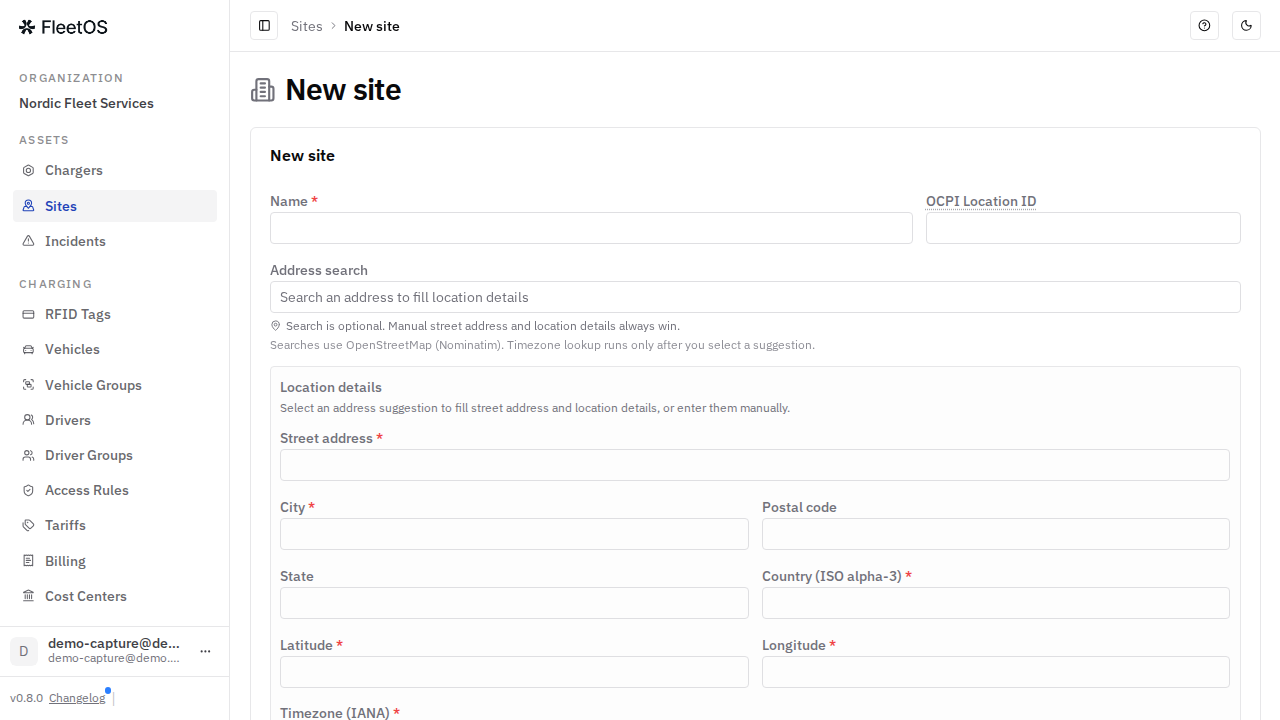
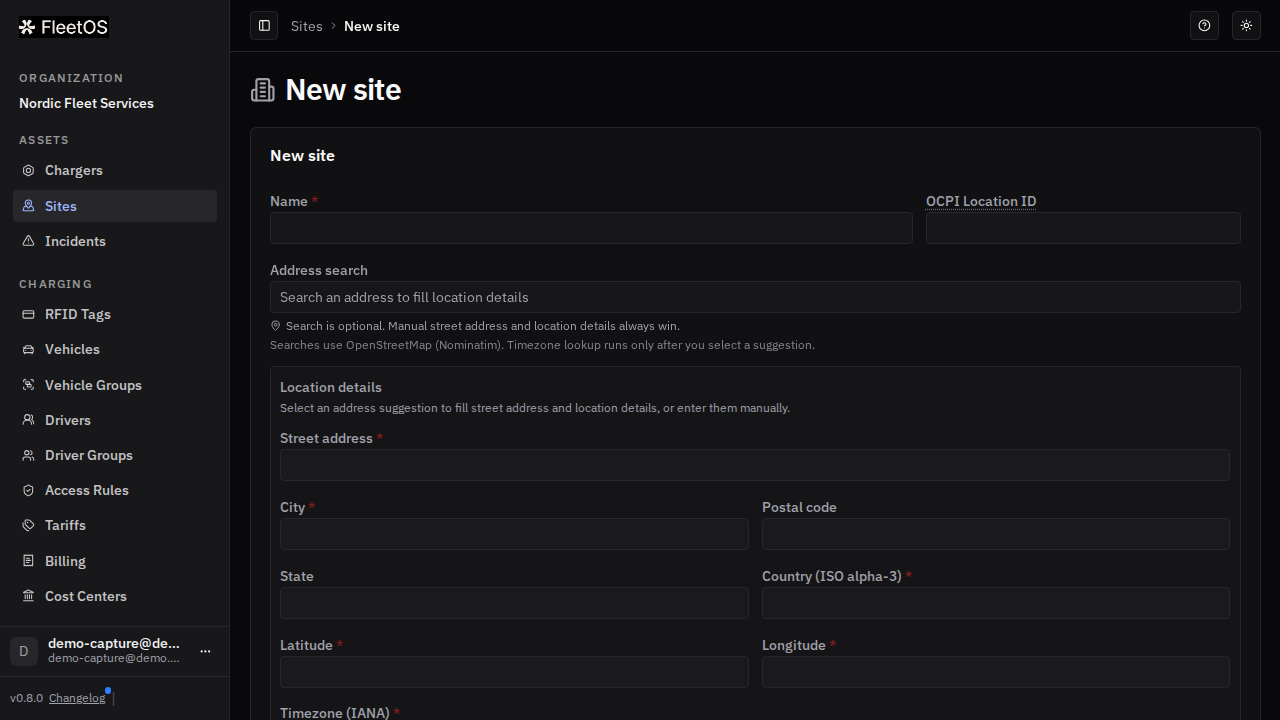
Enter the OCPI Location ID — a stable identifier you choose (for example
LOC-ROME-DEPOT). Pick it carefully: it's meant to stay fixed for the site's lifetime. -
Enter the Name and the address. You can use the Address search to fill the street address, coordinates, and timezone automatically from a suggestion — or type everything manually; manual entries always win.
-
Optionally add an owner contact, a manager contact, a description, and notes.
-
Select Create site.
Assigning and moving chargers
-
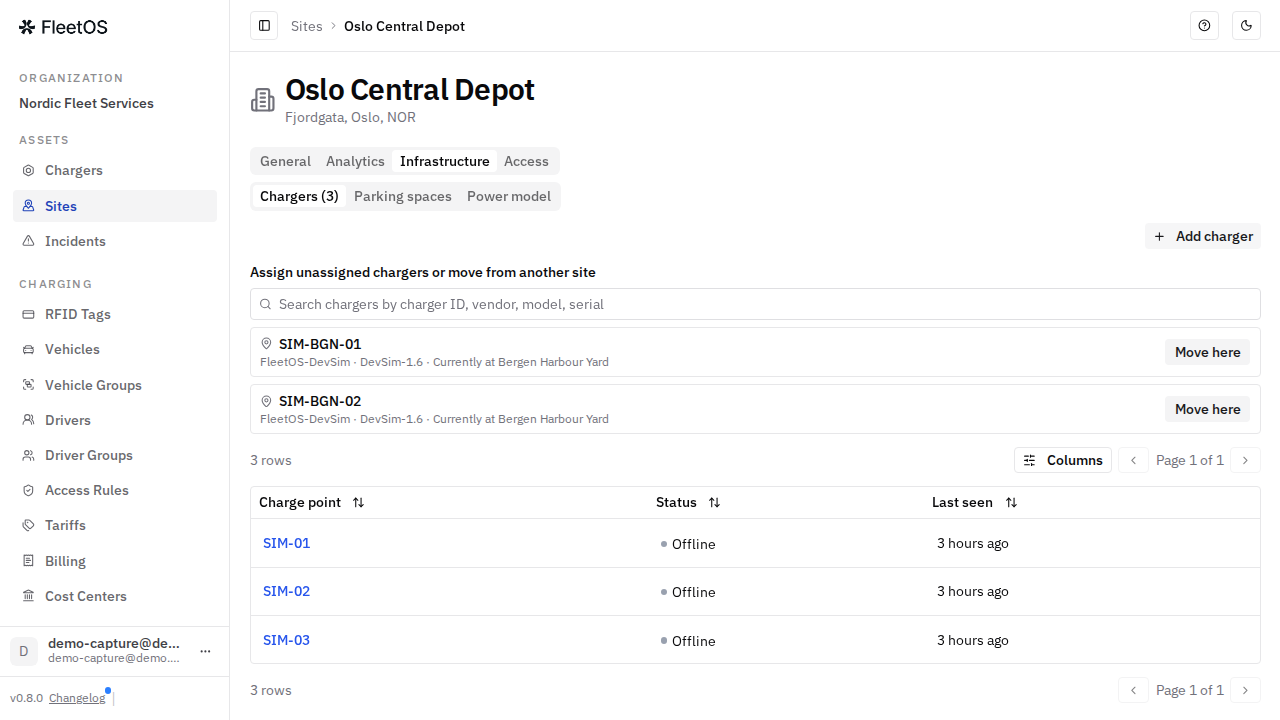
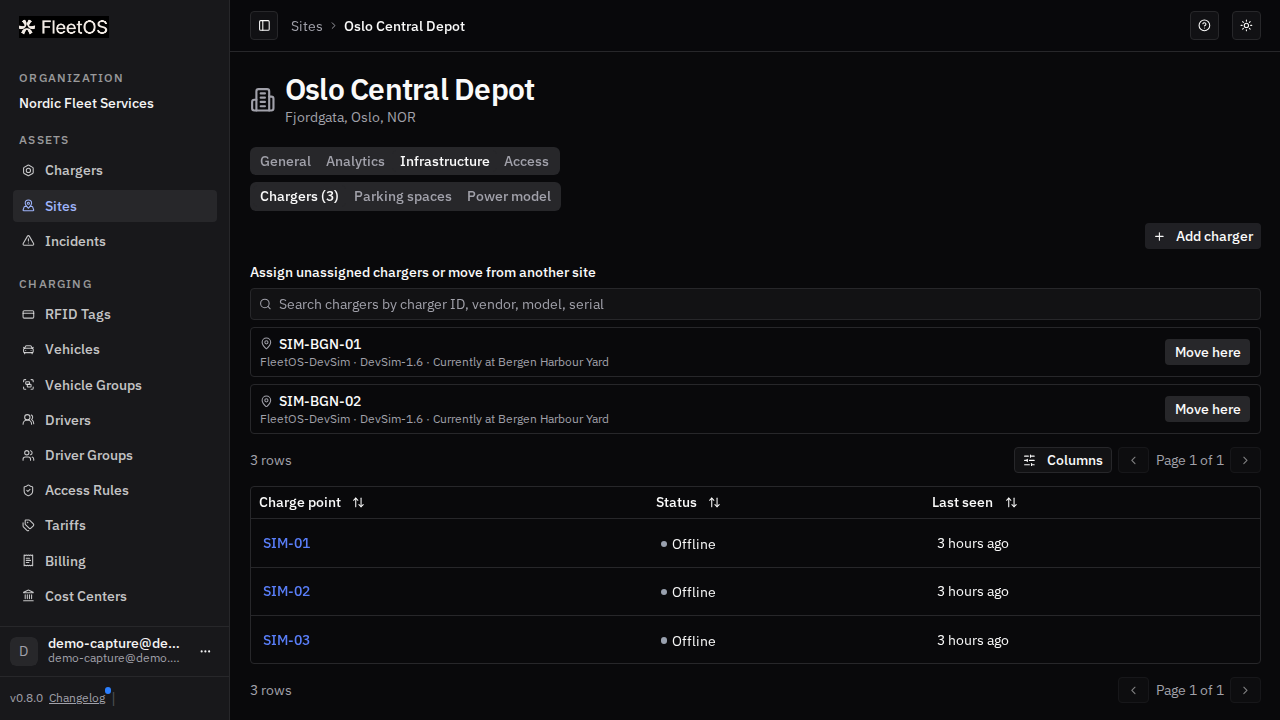
Open the site and go to the Infrastructure tab (Chargers view).
-
Select Add charger: FleetOS lists chargers you can Assign (currently without a site) or Move here (currently at another site).
-
A charger removed from a site isn't lost — it shows as "Asset in transit" in the Chargers list until you assign it to a site again. Handy for hardware in the warehouse or being relocated.
Note: this panel assigns existing chargers. To add a brand-new charger to FleetOS, register it first — see the "Adding a charger" page.
Parking spaces
- On the site's Infrastructure tab, switch to Parking spaces.
- Add each space with a physical reference (e.g. "A1"), a display name, and an optional OCPI ID, or use Import CSV to add many at once. Spaces are then linked to the charging points (EVSEs) that can serve them — one space can be reachable by more than one charging point, and vice versa.
- Each space shows a live status, such as In use or Blocked.
Configuring power sharing for the site
The Power model sub-tab (next to Chargers and Parking spaces on Infrastructure) maps the site's electrical setup — grid connection down to each charger — and controls how available power is shared across chargers when several charge at once. Offline chargers stay visible in the model, so it keeps showing the site's full installation while connectivity is handled separately. See "Charging speed and load management" for how to configure it and what the sharing strategies mean.


Editing and site analytics
- General tab: all location details with an Edit button. Address, contacts, description, and notes can be changed at any time.
- Analytics tab: energy delivered, sessions, peak power, and charger count for the site, with a power-delivery chart over time.
Good to know
- The timezone is looked up automatically when you pick an address suggestion; you can always override it manually. It matters for how session times and analytics are displayed for that site.
- Sites can be created before any charger is installed — useful to mirror your own asset-management records during a rollout.
- The country uses the three-letter ISO code (e.g.
ITA,DEU). - The OCPI Location ID is immutable once the site is created — pick it carefully; it can't be changed later from the Edit form.
- A site can be split into zones (Access tab) to scope access rules to part of a site rather than the whole thing — a zone either inherits the site's access rules or overrides them with its own.
Common issues
- Symptom: you can't find a charger in the site's "Add charger" panel. Cause: the charger hasn't been registered in FleetOS yet — the panel only lists already-registered chargers. Fix: register the charger first from the Chargers page, then assign it.
- Symptom: session times for a site look shifted by a few hours. Cause: wrong timezone on the site. Fix: edit the site and correct the timezone.
- Symptom: deleting a site fails. Cause: it still has chargers assigned. Fix: move or unassign every charger from the site's Infrastructure tab first, then delete the site.
Related pages
Last updated: 2026-07-28 · Verified on: hosted demo app, 2026-07-28