Charger offline or faulted
In short: When FleetOS detects that a charger has gone offline or is reporting an error, it first tries to resolve it automatically. Only if automatic recovery doesn't work does it alert your fleet operators and your organization's escalation contact.
Detecting the issue
-
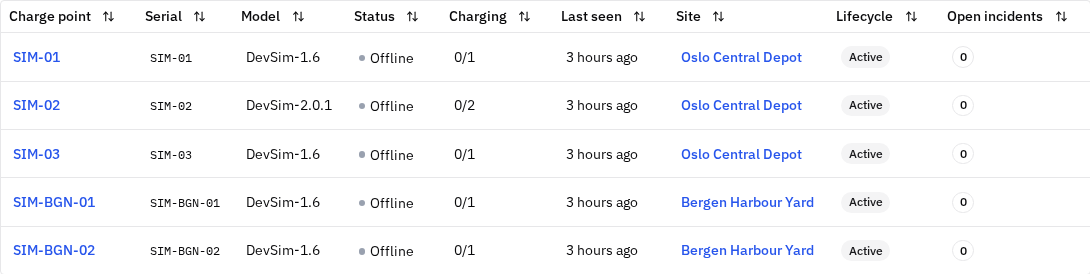
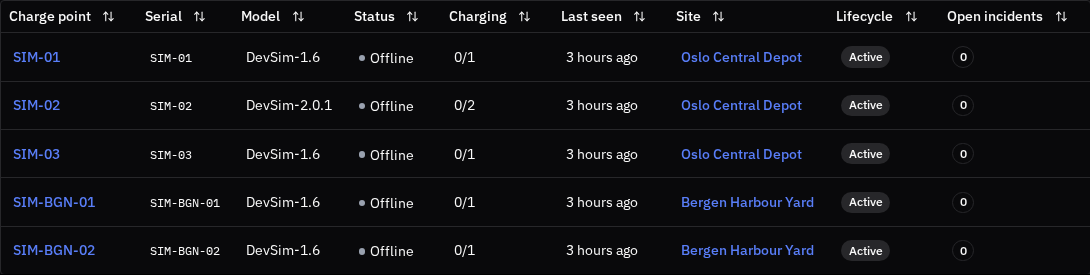
FleetOS monitors chargers continuously. Offline means the charger hasn't sent its expected heartbeat signal in time; Faulted means the charger itself reported a fault status or an error code.
-
You see the state in the Chargers list (Status column) and on the charger's page.
Automatic recovery
-
Offline: FleetOS asks the charger to report its status, performs a soft reset, then waits for it to reconnect.
-
Faulted: FleetOS performs a soft reset — except for safety-critical faults (a ground fault, over-voltage, or over-current condition), which are never reset automatically and escalate immediately instead, for safety.
-
FleetOS retries the recovery steps a limited number of times over a short window; if the charger hasn't recovered, it stops retrying and escalates. If the same charger keeps needing recovery repeatedly, FleetOS also stops and escalates instead of looping.
-
You can turn automatic recovery on or off per charger: charger page → Health tab → Automatic recovery switch.


Escalation to your team
- If automatic recovery doesn't resolve the issue (or immediately, for safety-critical faults), FleetOS notifies your fleet operators and your organization's designated escalation contact by email and SMS.
- For unresolved incidents, FleetOS can also send a detailed email — with device context, a diagnosis, and relevant log excerpts — to help resolve the issue faster. You can trigger this yourself with the incident's Escalate button.
Acting on an incident manually
-
Open the charger's page and go to the Health tab: it lists the charger's incidents. Select an incident to open its detail.
-
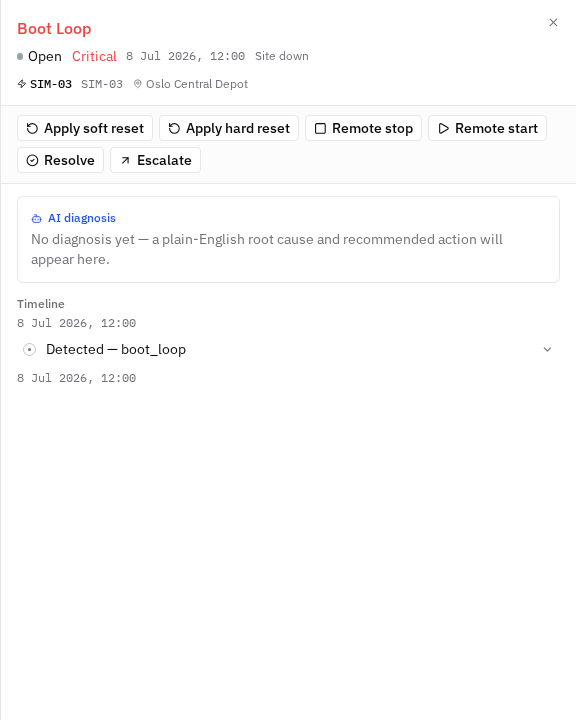
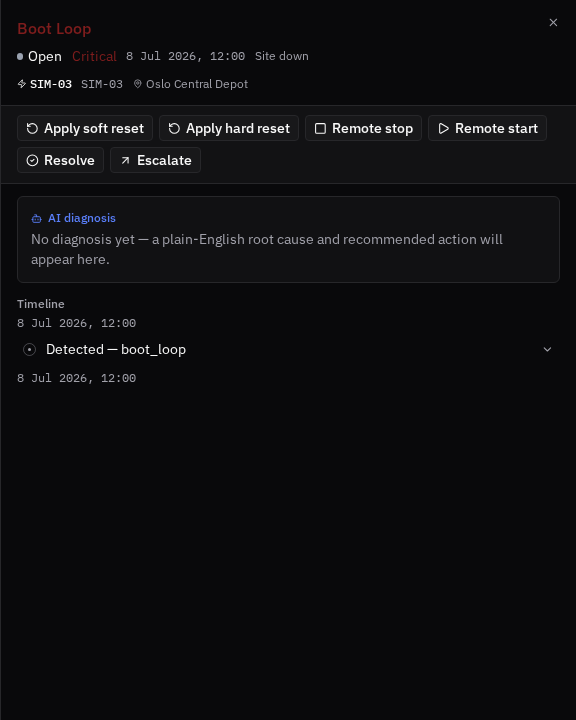
The incident view shows an AI diagnosis — a plain-English explanation of the likely cause with a recommended next step, based on the charger's error codes and history. It's informational only: it never takes an action by itself.
-
From there you can Apply soft reset (a gentle restart, the same action FleetOS's automation uses), Apply hard reset (a full power-cycle — see the warning below), Remote stop / Remote start a charging session, Resolve the incident once you've confirmed the charger works again, or Escalate it.
-
The same commands (and more) are available any time from the Actions menu at the top of the charger page.
Good to know
- Safety-critical faults (ground fault, over-voltage, over-current) are never auto-reset — they escalate immediately, with no automated action, for safety.
- A hard reset power-cycles the whole charger, interrupting every active session on all of its connectors — not just the faulty one. That's why automation only ever uses soft resets, and hard reset is a manual decision.
- Each incident's timeline records what was detected, what the automation tried, and the raw charger error events — useful when talking to support or the charger vendor.
- Incidents resolved by automation and incidents you resolve manually are both tracked, so uptime statistics stay accurate.
Common issues
- Symptom: the platform doesn't detect or correctly show the charger's status. Cause: a possible connectivity/heartbeat issue or a charger configuration problem. Fix: contact FleetOS support.
- Symptom: escalation notifications don't reach the right person. Cause: the organization's escalation contact is outdated. Fix: update the escalation contact in your organization settings, or contact FleetOS support.
- Symptom: the incident points to a hardware problem (e.g. a persistent ground fault, physical damage to the connector). Cause: a physical fault that can't be resolved via software. Fix: contact the charger manufacturer/vendor — FleetOS doesn't attempt automatic recovery for these cases and escalates them directly. The incident's detailed escalation email gives the vendor the context they need.
Related pages
Last updated: 2026-07-14 · Verified on: hosted demo app, 2026-07-14