Tariffs and pricing
In short: FleetOS prices charging with tariffs: a per-kWh rate, with an optional free-energy allowance. A tariff is assigned to RFID tags — when a driver starts a session with a tag, the session is billed at that tag's tariff. Driver groups are a separate, unrelated tool: they don't set a price, they're just a way to target access rules at a set of drivers.
What a tariff contains
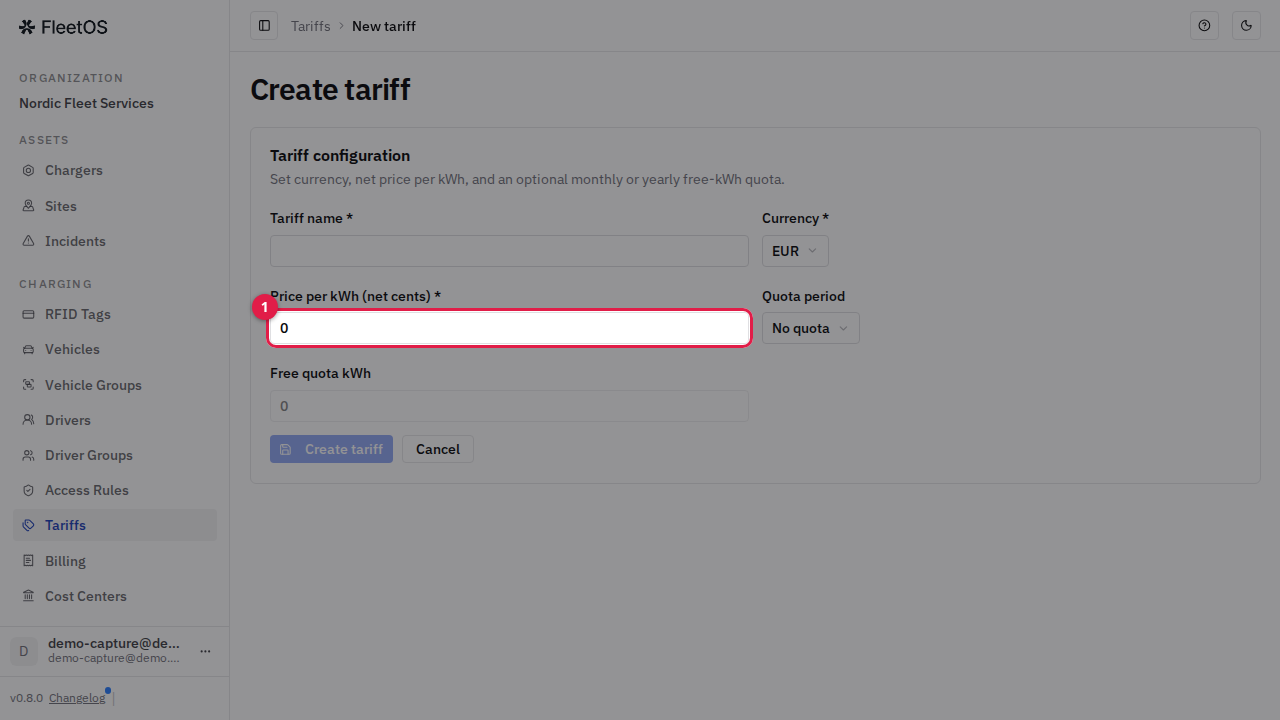
- A price per kWh — the rate charged for energy. Prices are net (no VAT applied) and are entered in cents: for example, entering
29means €0.29 per kWh. - An optional free-energy quota — a number of kWh that's free before the per-kWh rate kicks in, reset either every month or every year (your choice per tariff). For example, "15 kWh free per month, then €0.29/kWh."
- A single currency — each tariff is set up in one currency (EUR or USD). Sessions are billed in that tariff's currency; FleetOS does not convert between currencies.
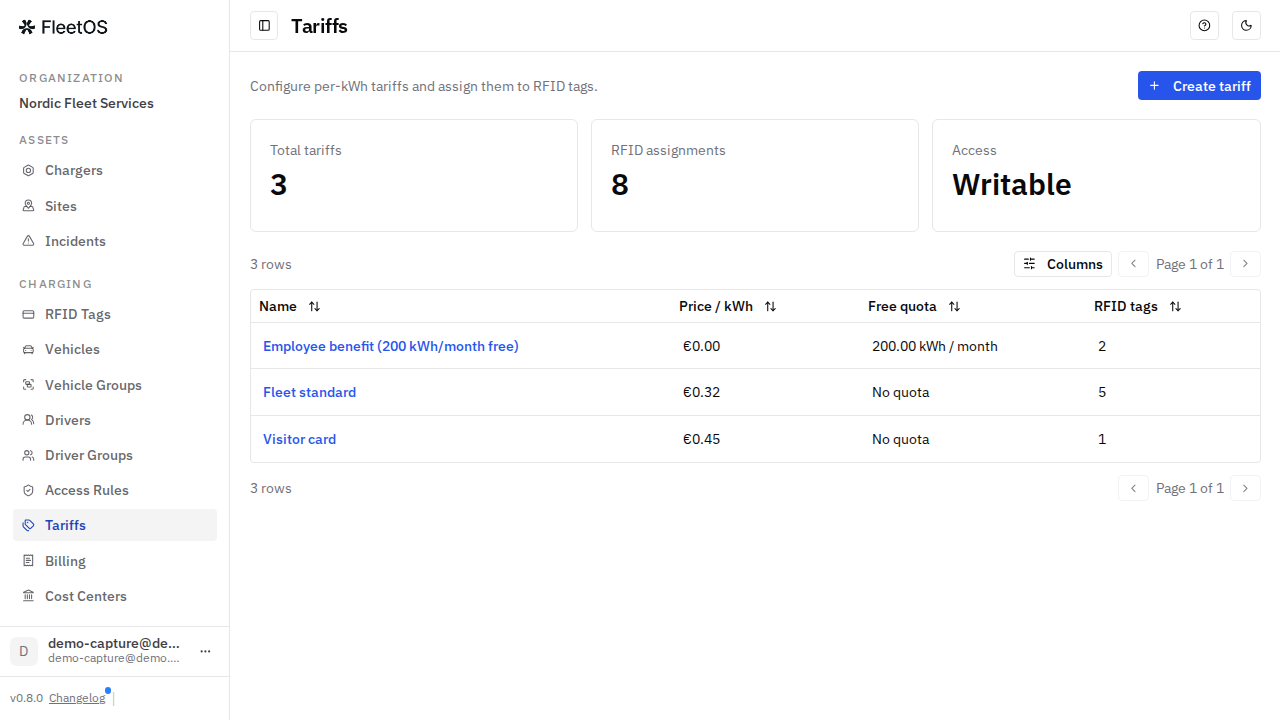
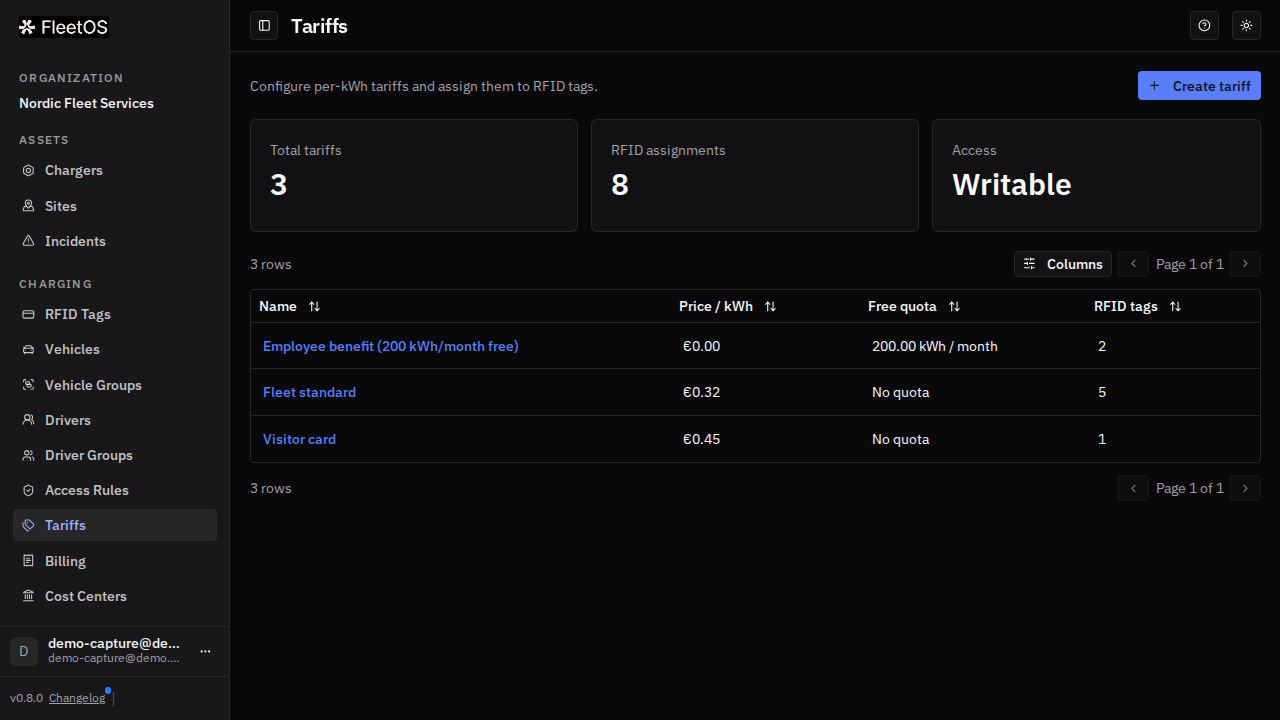
Create a tariff
- In the sidebar, go to Charging → Tariffs.
- Click Create tariff.
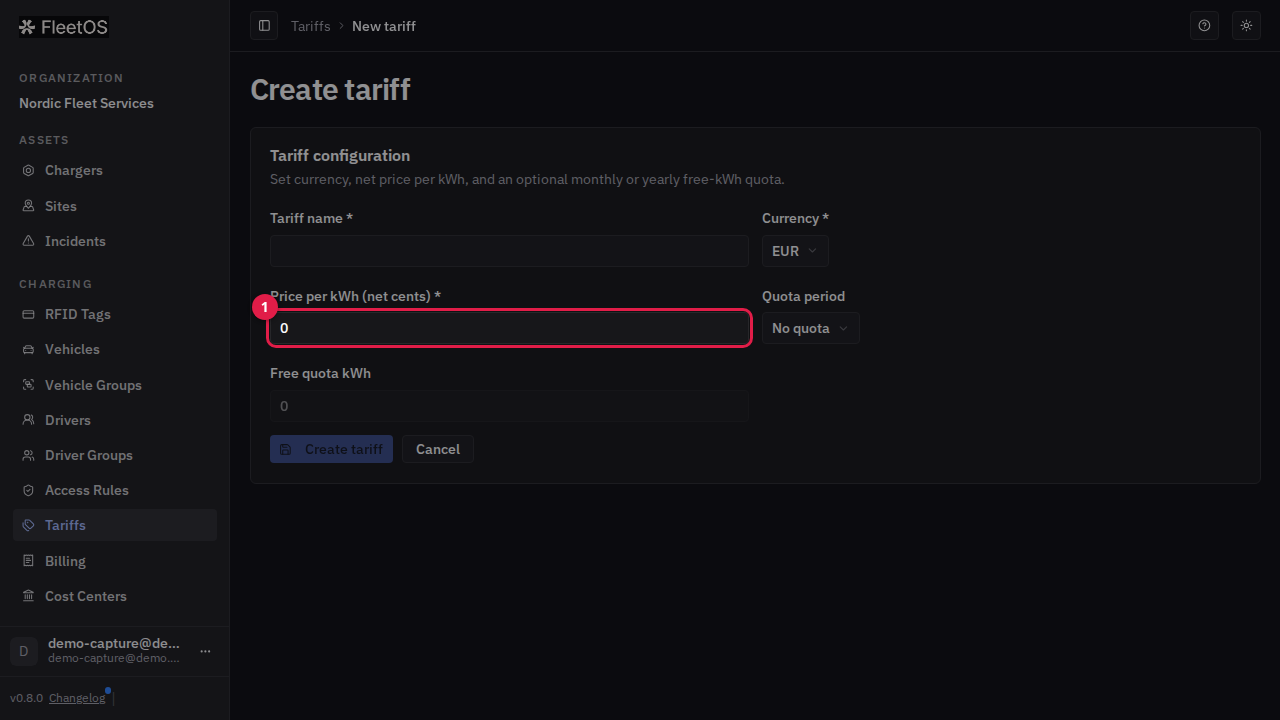
- Enter a name, pick the currency, and set the price per kWh in net cents.
- If you want a free-energy allowance, set Quota period to Monthly or Yearly and enter the Free quota kWh. With No quota, every kWh is billed at the tariff rate.
- Click Create tariff.
Assign a tariff to an RFID tag
The tag owns the relationship: tariffs are assigned from the tag's page, not from the tariff's page.
- Go to Charging → RFID Tags and open the tag.
- Pick the tariff in the Tariff dropdown.
- Click Save changes.
From then on, every session started with that tag is priced at the assigned tariff.
Edit or delete a tariff
Click a tariff in the list to open it. The tariff page shows the same configuration fields plus a read-only list of the RFID tags currently using the tariff.
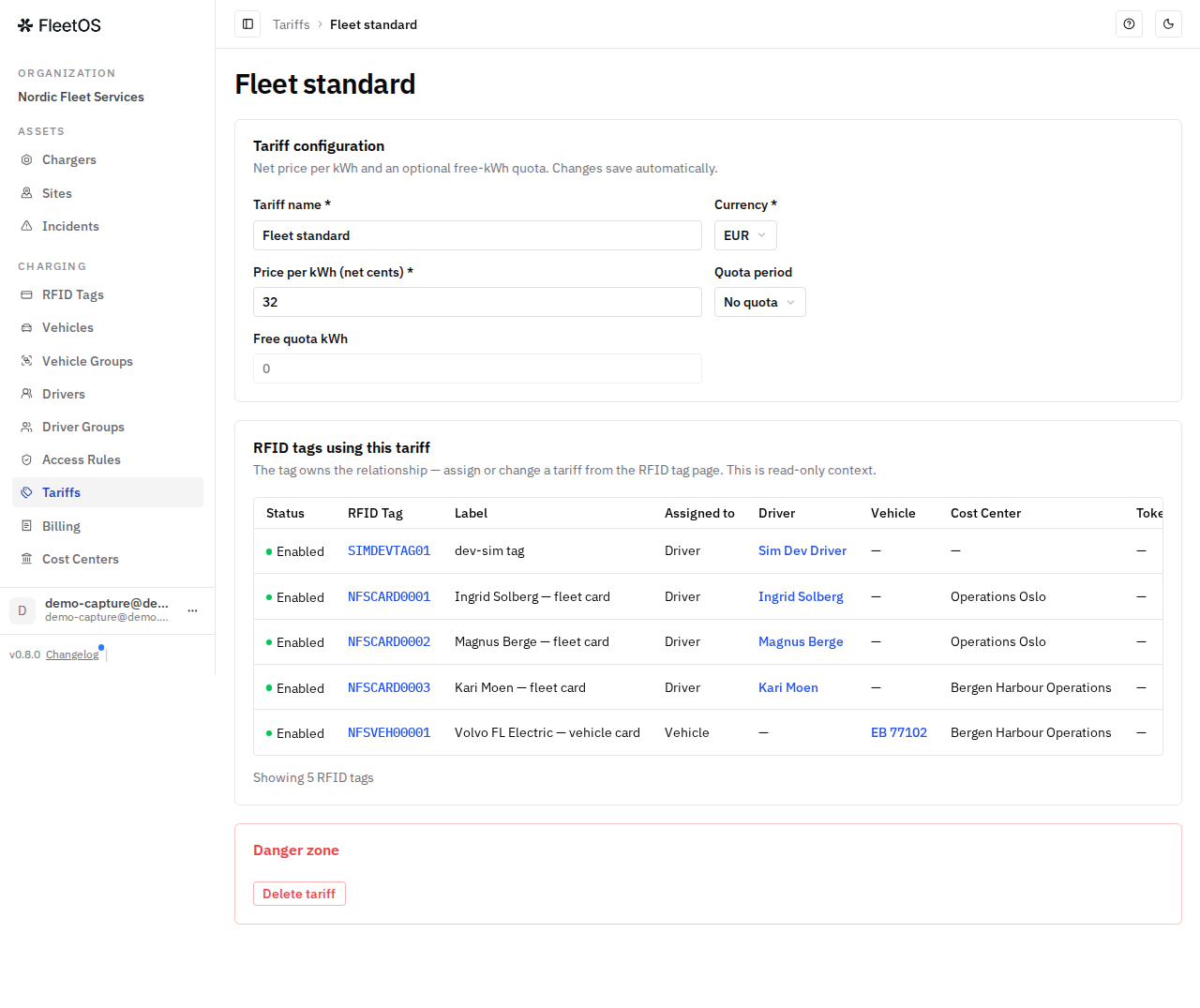
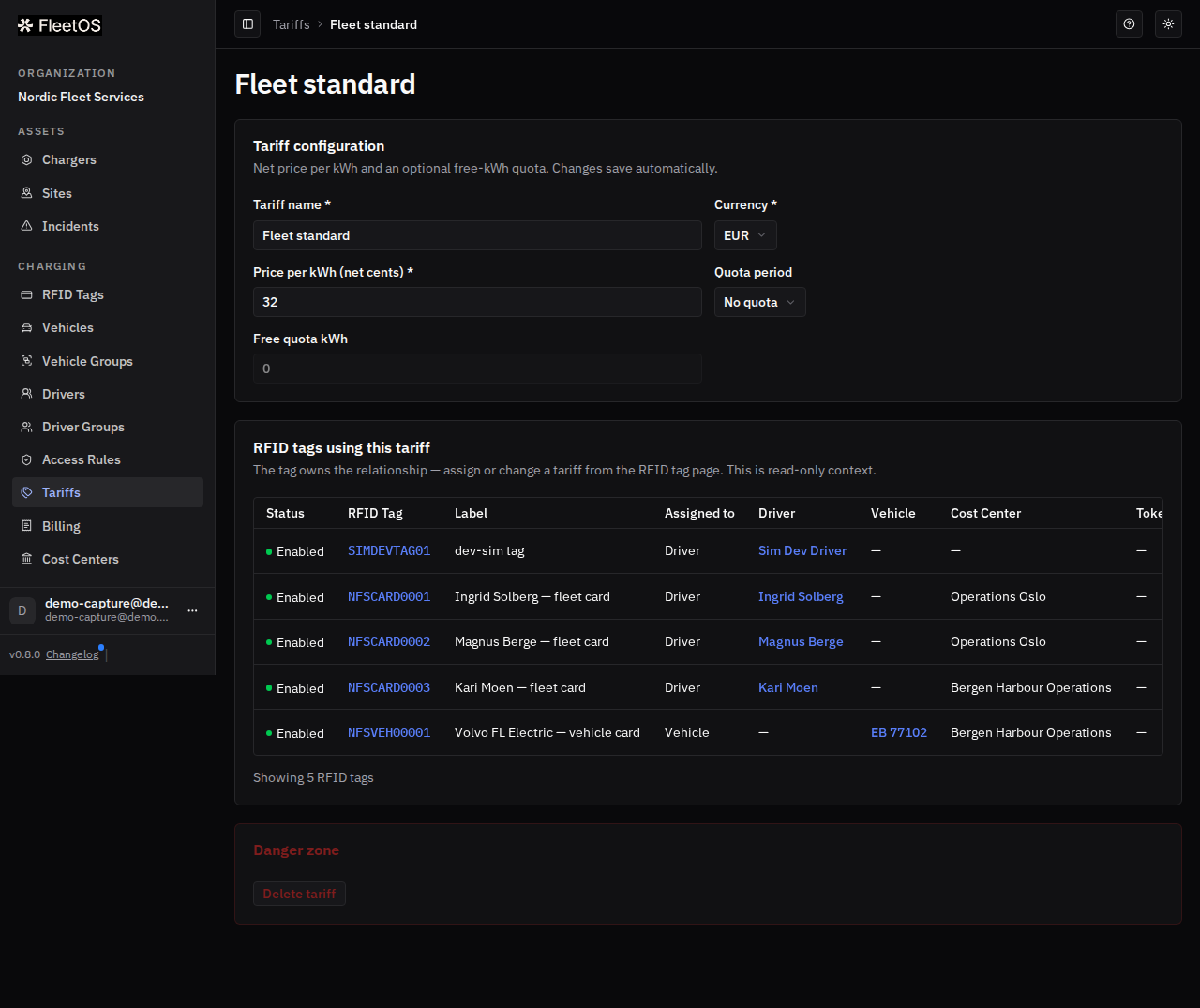
To delete a tariff, use Delete tariff in the Danger zone section at the bottom of the tariff page. Deletion is blocked while any RFID tag still references it — unassign it from every tag first. Past sessions keep their billed amounts regardless.
Manage driver groups
Driver groups don't price anything — they're only a way to target access rules at a set of drivers (see the access rules page).
- In the sidebar, go to Charging → Driver Groups and click Create group.
- Name the group and save.
- Open the group to add or remove members: search for a driver, pick them from the dropdown, and click Add; Remove on a member row asks for confirmation, since it affects charging access.
- Rename a group any time from its detail page, or delete it from the Danger zone.
Good to know
- Edits to an existing tariff save automatically — there is no Save button on the tariff page. A change to the price applies to future sessions.
- The list of tags on the tariff page is read-only. To assign or change a tariff, go to the RFID tag's own page.
- If a tag has no tariff, its sessions have no price to bill against. Assign a tariff to every tag whose sessions you want priced.
- The free quota is per tariff, not per tag — the quota period (monthly or yearly) is part of the tariff definition.
Common issues
- A driver is billed at an unexpected rate. Check which tag actually started the session and which tariff that tag carries — a driver can hold more than one tag (for example a personal tag and a vehicle-bound tag), each with its own tariff.
- Sessions show no price. The tag that started them has no tariff assigned. Open the tag under Charging → RFID Tags and set one.
- You can't add tags from the tariff page. That's by design — the assignment is made on the tag's page.
- You can't delete a tariff. It's still assigned to one or more tags. Set each tag's Tariff to None and try again.
Related pages
- Session billing and data export
- Cost centers
- Drivers and RFID cards
- Charging access rules and guests
Last updated: 2026-07-14 · Verified on: FleetOS v0.8.0 (hosted demo)